

Stornaway is super intuitive and many of our creators find that they can jump straight in and get making immediately. Take a look below to read some of our FAQs on:
⏺️ Button Types
🚀 Pricing, subscriptions and bandwidth
And, if you’re a bit stuck, head over to our 🙋♀️ troubleshooting questions or get in touch with the support team.
🌟 Project Settings
How do I create vertical or portrait videos?
Use the aspect ratio settings in Project Settings to change the player’s frame size.
Useful for matching different screen sizes – cinema scope for large screens, vertical/square frames for mobile and social platforms.

How do I get my videos to start playing automatically?
Turn on the autoplay option in Project Settings.
Key things to note: The first island must contain no sound (or the browser will automatically mute it). This is due to restrictions within the browsers. So be sure you’re happy with the first island playing mute.

Can I duplicate my projects?
Yes, depending on account level. You can copy a project with or without its media, keeping all branching paths, content, and game logic intact.
Can I make a cover / loading / thumbnail / poster image for my project?
Yes, upload a 1920×1080 JPG as the project’s Poster Image (Settings → Edit Project). On load, viewers see this welcoming image instead of the video’s first frame.
Can I make my Stornaway player autoplay?
Yes – tick the autoplay setting in Project Settings. Important: the first island must be silent or the browser will auto-mute it.
Why don't button images have alt text?
We use aria-label instead of alt text to describe interactive buttons for screen readers, which is the correct accessibility method for buttons. This follows current best practices from the W3C WAI-ARIA Authoring Practices and WCAG 2.1 (Non-text Content). Adding alt text to images inside buttons isn’t recommended – it would cause screen readers to announce the same information twice, actually reducing accessibility rather than improving it.
What's the best Stornaway project size for both mobile and desktop?
We recommend 1080 x 1080 . The Stornaway player is adaptive – it offers high-res, medium, and low-res options and uses the viewer’s screen size to decide which version to deliver, making streaming easier across devices. Keep in mind that mobiles may block preloading of larger videos, which can make transitions between islands feel less seamless, so sticking to a sensible size like 1080 x 1080 helps ensure smooth playback on both mobile and desktop.
What is the optimal resolution and aspect ratio for the Poster Image in a project's settings?
The default aspect ratio for projects in Stornaway is 16:9, which you can confirm by going to Settings > Edit Project. For best results, we recommend uploading a Poster Image that matches this 16:9 ratio.
The Poster Image is what viewers see in the embedded player before your video begins playing. You may notice that on your dashboard homepage, the project thumbnail appears cropped – this is simply because the dashboard displays thumbnails in a different shape.
Does Stornaway support single sign-on (SSO) or multi-factor authentication (MFA / 2FA)?
SSO is available on our Enterprise plans. However, Stornaway supports MFA (2FA) independent of SSO, and any user can enable it on their own account. To turn on two-factor authentication:
- Go to Profile > Account Settings
- Scroll to Two-Factor Authentication (2FA)
- Follow the prompts to set it up
🗺 Mapping your project
Can I start playing from the middle of the story rather than having to go from the start every time?
Yes! Play from here is your friend. You can find it near the top of the Sidebar for every island and tab, just under Name and Description.
When you have published your story, there’s a Public URL for every island – you can find it just next to ‘Play from here’ in the sidebar. This is a link to that specific island, so you can provide links that let viewers jump straight to an island.
This lets you share an individual island on social media, or make a list of links on a web page or create a playable visual map of your story (see our example here)

Can I preview my story in a separate full screen tab as well as in the pop-up player?
Yes. To open the preview in a new tab matching the published player view:
Windows: Ctrl+click on “Play” or Right click “Play” and choose Open in New Tab from the menu
Mac: Command+click on “Play” or Ctrl+click and choose Open in New Tab from the menu
Mobile: Hold your finger on “Play” until options appear and then choose Open in New Tab
How do I make the Stornaway player wait until a user makes a choice instead of automatically moving on?
Tick ‘Pause at end‘ in the styling section in the sidebar (see picture).
This will freeze frame on the last frame of the video file you upload, and wait for the user to make a choice.
Another way to do this is to create a separate ‘menu screen‘ with a still or moving image:
- To make a still image menu, create a separate island for the menu, and upload a still image as the island’s Poster Image.
- To make a moving image menu, create a separate island for the menu, and upload a video to it. Then make one of the island’s choices to loop back to the start of the same island itself, set it as default, and hide that choice by ticking “Hide” next to its onscreen text field. The island will then loop until someone makes one of the other choices.

How do I set a default if I only have one external link?
A default choice is required for validation, but the default field can’t currently be edited on External URL choices. Workaround: add a second choice, leave it unlinked, mark it as default, and tick the Hide checkbox so viewers don’t see it.
If you have any problems, let us know at support@stornaway.io
Can I duplicate my islands?
Yes, depending on account level. You can copy an island keeping all branching paths, content, and game logic intact. You can later replace the media if you need.
When I link one Stornaway project to another, it takes ages to load - why?
Linking to another Stornaway project from inside one currently needs a different subdomain. If your main project uses player.stornaway.io, button links to other Stornaway videos should use studio.stornaway.io. Also, replacing ‘watch’ with ’embed’ gives a cleaner embedded player. Example: change https://player.stornaway.io/watch/abcd1234 to https://studio.stornaway.io/embed/abcd1234.
Can dropdown menu items link to specific times in a video?
Yes – each button inside the menu can link to a new Island, an external link, or jump to a specific time in the current Island or a different one. That makes menus ideal for chapter navigation.
Do I have to rebuild the dropdown menu on every Island?
No. Build it once, then duplicate the Island. Your menu travels with the duplicate, so you can reuse it across your whole project without starting from scratch each time.
What time format should I enter for the pause video option?
Use 0m0s format (for example, 1m30s) in the “Pause playback at specific times” field, under Settings and styles for all buttons.
Can I pause more than once in a single video?
Yes. You can add multiple pause times to a single Island, so you can punctuate a longer clip with several reflection or decision moments.
⏺️ Button Types
How do I make a button that links to a web page or product?
In the sidebar’s ‘Links To’ dropdown, choose External URL. Paste the link and tick ‘open in another tab’ if needed (recommended for embedded projects). Any URL works – web pages, PDFs, social profiles, mailto: links, or e-commerce add-to-cart URLs (e.g. Shopify). If you want to keep your viewer in your project, check out Stornaway Voyager. This allows you to embed other websites inside your Stornaway project.

How do I create invisible clickable hotspots?
Watch our tutorial video for full details on this.
Use the Stornaway Design Editor to make your buttons completely transparent – when used in combination with custom button sizes and custom button positions, you can place an invisiable, clickable hotspot anyone on the player.
The Design Editor allows you to have different settings for hover and clicked buttons. Top tip: Place your buttons before you make them transparent.
How do I hide the button text that appears on the top of my image?
Two options: (a) put a single space in the custom button text field, or (b) keep the text for screen-reader accessibility and use the Design Editor to change your buttons to fully transparent – dropping the opacity to 0% using the bottom slider in background, text and border settings.
📊 Analytics and Reports
Can I use Stornaway's analytics with an LLM?
Absolutely. Stornaway’s analytics and CSV export have been thoughtfully designed to make reporting as straightforward as possible – including use with AI and LLM tools. The data is structured and clearly labelled so that it can be fed directly into an LLM or reporting workflow with minimal preparation. Whether you’re generating summaries, identifying viewer drop-off patterns, or building custom reports, the export gives you everything you need in a clean, accessible format to get meaningful insights quickly.
Where does the data viewers submit go?
You can view it in Stornaway’s Advanced Analytics (available on Premium plans and above), and on Enterprise plans you can send it to your own platforms via integrations to feed CRMs, LMSs, or marketing tools.
How do analytics work in Stornaway.io?
Stornaway’s analytics dashboard lets you track button clicks, exits, scores, variables, and retention data for each section of your interactive video – going far beyond basic views and watch time. You can visualise engagement trends, dig into individual viewer journeys, and download CSV reports, with advanced decision and journey analytics available on Premium plans and above.
🗣 Publishing and Sharing
How do I make my projects public?
While editing, the ‘Play’ button previews privately to you and collaborators. When ready, click Export → Publish to share via a public Stornaway player URL. Further edits don’t affect viewers until you Publish again, and you can Unpublish at any time.
Requires a Hosting or above paid plan.
Can I share my project a different point to the start Island?
Yes – once published, every island has its own Public URL, so viewers can deep-link to a specific island. Open the Island Settings Panel and scroll down to “Other Settings” > Variant ID and URL info. In here, you’ll find the link to the Public URL for this Island.
Where can I publish my Stornaway.io stories?
Multiple destinations:
• Stornaway’s hosted player or embedded on your own site
• LMS platforms via SCORM (tracks completion, score, pass/fail, interactions)
• PowerPoint (via Microsoft’s Web Viewer Add-in)
• Compatible VOD platforms (integrations ongoing -contact for details)
How do I find the link to my published story?
In the Export page, after you have clicked “Publish”, you will see a button marked “View Your Published Story”, which is linked to the URL for your project – clicking it will open the page with your project’s video player, starting from your Start Island. Copy the link to this page to share with anyone.
How do I embed a Stornaway.io story?
Like a YouTube or Vimeo embed. ‘Enable Embedding’ is ticked by default at publish time. After publishing, you’ll automatically get an embeded code that you can copy and paste. Note: the embed code only shows for logged-in collaborators on the project.

Can I have a sample embed code to test?
Absolutely! This is the embed code for the Getting Started video:
<div style=”position: relative; padding-bottom: 56.25%; height: 0; overflow: hidden;”><iframe style=”width: 100%; height: 100%; position: absolute; top: 0; left: 0;” src=”https://player.stornaway.io/embed/fb8e6c2b” frameborder=”0″ allowfullscreen=”allowfullscreen”></iframe></div>
What’s the difference between “Whitelabel” and “Watermark” in the Stornaway player?
Watermark: This is a visible Stornaway logo that appears directly over the video content itself (top left corner).
See the image below as an example.
To remove our watermark in your projects you can upgrade to our pro plan here.

Whitelabel: This feature allows you to remove all Stornaway branding from your project, including the Stornaway logo that would normally appear in the player controls (in the bottom-right corner) as shown on the image below.
You are able to do this with our enterprise plan. Get in touch here if you’d like this option.

White label: How to change play button colors and remove bottom right logo?
Premium users get these controls in Settings → Edit Project — change player-control colours and toggle off the bottom-right logo. Separate from the top-left watermark, which only shows for Trial/Free accounts and disappears on any paid subscription.

How do I share my story on social media?
Sharing the story: copy the public player URL (e.g. https://player.stornaway.io/watch/XXXXXXXX) and paste into Twitter, LinkedIn, or Facebook. Twitter and LinkedIn play inline; Facebook links or opens in an overlay. Instagram requires ‘link in bio’ (unless you share as a story)
How does watching in full screen work?
Viewers can use the full-screen arrow icon on the player’s bottom-right. Works on all browsers and devices except iPhone – Apple blocks fullscreen for web apps on iPhone (works on iPad and Mac). Workaround: design the embedded player to fill as much of the screen as possible (square ratio), or use a modal/lightbox pop-up player.
To what platforms can I publish my Stornaway project?
Web player, your own site, LMS (SCORM export included), or downloadable apps for iOS, Android, PC/Mac, Steam, Smart TVs, and game consoles. Also: cinema/movie-theatre live screenings via executable apps (audiences vote with phones or glowsticks), and compatible VOD platforms (contact for current status).
Can I export my project as an MP4?
Interactive videos can’t be exported as a single video file – they’re a collection of MP4s linked by a playlist and code, more like an app than a video. Delivered via the Stornaway web/mobile player, shareable by URL or embed.
How can I make a map or list that links to individual islands?
Each island has its own specific public URL
In the Sidebar for each Island, you will also see a link to the Public URL for each individual Island variant. You can share this to share each Island, letting your audience jump right into the middle of your story. You can share these as links in social, or as a chapter list on a website, or find more creative uses for them…
For example, you can see here how a link from each Island was used to make a playable clickable map of Life Moves Pretty Fast, which lets you jump into any part of the story – just click any location to start from there.

Click to open the playable map in a new tab
Why isn't there a fullscreen button on iPhone?
Apple restricts web apps from using fullscreen mode on iPhone. Since the Stornaway player is an interactive web app (not a standard video using Apple’s native player), the button is intentionally hidden on iPhone. Fullscreen still works as expected on desktop, Android, and iPad. As workarounds, we recommend designing the embedded player to fill as much of the screen as possible, or using a modal/”lightbox” player.
Where is Stornaway hosted?
Stornaway is hosted securely on Amazon Web Services (AWS) – the world’s leading cloud platform – and delivered through Amazon CloudFront, a global content delivery network (CDN). This means your interactive videos are fast, reliable, and available worldwide, no matter where your audience is.
AWS data centres meet strict international standards for security and compliance, giving you enterprise-grade reliability without the complexity.
🚀 Pricing, Subscriptions, Bandwidth
If I publish a project, do I have to keep subscribing to keep it online?
If you pause or cancel, the project stays viewable in your Story Map and Preview player but is no longer viewable via the Stornaway player or any embeds. Monthly/annual plans can be upgraded or downgraded freely.
Can you explain 'bandwidth'? And how much do I need?
Bandwidth here means data transferred when streaming the video to viewers — more bandwidth used = more people watching. Stornaway includes high-quality, ad-free hosting and streaming. Benchmark: a short interactive piece could be played ~100,000 times within a 1TB Studio allowance (bandwidth measures actual watch time, not raw clicks). 99% of creators never hit their limit; you’ll get a heads-up before issues arise. For very large audiences, please contact us for tailored options.
Does subscribing remove the watermark?
Yes – any paid plan removes the top-left Stornaway watermark.
The smaller bottom-right player-controls logo is removed at the Premium plan level or Enterprise.
How do I cancel my Stornaway subscription?
We’re sorry to hear you go. To cancel your rolling subscription, head to your account subscription settings and click the “unsubscribe” button.
📁 Uploading Media
How do I use the editors and stock footage links in the upload panel?
You need to use a video editor to craft videos to upload to each Stornaway island. See above for more details of some examples.
We provide links to 3 free video editors and 3 free stock footage services in our Add Video panel, to let you get started quickly with web-based tools.
Follow the links to these platforms and then download mp4 or mov files from them which you can upload to your islands in Stornaway.
Free web-based video editors
Make videos with these and export them as mp4 files for upload to Stornaway.
They all provide the ability to make videos using templates, stock footage, music and text. See which one has a template and interface that best suits your needs.
Adobe CC Express will let you make and download a video for free without a watermark and has a unique chapter-based interface, and asks you to sign in first.
Canva doesn’t require you to sign in, and has a lot of templates – but will add a watermark to your downloaded file if you’re not a paying user.
Veed doesn’t require you to sign in, and has great subtitling and text features, but will add a watermark if you’re not a paying user. A lot of our tutorial videos are currently made by Abbie using Veed.

Cropping
NB not all footage in these services is 16:9 1920×1080 – for example, some Adobe Stock is 2048×1080. If it’s not 16:9 and you want it to fit Stornaway’s frame neatly, use Adobe’s easy web resizing tool. To crop a video that’s too wide or tall for 16:9, set it to “Resize for: Custom” and unlock the proportional height & width lock:

What other video editors do you recommend for beginners?
First of all, what do the Pros use?
The top professional video editing applications for film, tv and video production are Adobe Premiere (and After Effects for graphics), Avid Media Composer and Final Cut Pro (FCP). We have lots of users editing Stornaway projects with these. They all have huge feature sets, steep learning curves, and are powerful beasts. Adobe and Avid have pro subscription prices and FCP has a one-off cost of $300. The free Davinci Resolve is coming up fast as a great free pro editor, since its long history as a color-grading application, but is still quite complicated to use in comparison to those listed below.
We also have an Adobe Premiere and After Effects panel in beta, which opens your Stornaway story map inside your editing application, letting you playtest your story while you edit. Let us know if you’d like to use it.
For everyone else…
We don’t recommend these 4 to most people – they’re over complicated for simple editing and beginners.
It’s much easier and more fun to do (and learn) the basics using these:
Desktop computer applications:
Mac: iMovie or Adobe Rush
PC: Adobe Rush or Vegas
Mobile apps:
Capcut (free – popular with TikTokers and YouTubers) or LumaTouch (more powerful at $30) or iMovie on iPhone and iPad ($5).
Web browser editors (like Stornaway):
Adobe CC Express, Canva or Veed.io
We link to the last 3 from our Upload panel in the app. We discuss their pros and cons a little bit in the section above, and recommend that you try them out for use with Stornaway.
What to choose and how to learn
There are amazing online tutorials on YouTube for all of them. Pick one from the list above that seems right for your device and budget, and try it out – or search on YouTube for tutorials to see if you like the look and feel of it.
Let us know what you prefer to use, and how you get on – or help other Stornaway users by sharing your experiences and expertise on social media.
What settings should I use for normal video?
For regular videos (not 360 or images), we recommend the following settings when you export from your video editor:
File size:
We have a maximum file size of 4GB per video clip, for various reasons. This is the equivalent of one hour of video at the recommended HD settings shown here or two hours of 720 per clip. If you need to use longer files, see the help section below.
File type and codec:
We accept files that end with .mp4 and .mov, containing H264 and H265/HEVC codec. Export these from your video editor and use the settings below.
Advanced note: mp4 and mov (also known as Quicktime) files can contain lots of different types of video data, known as codecs. Examples of codecs include VP9 and ProRes which have different quality settings and vastly different file sizes. We accept H264 and H265 codecs and recommend the settings below.
Resolution / Frame Size:
1920 x 1080 recommended – i.e. 1920 pixels wide by 1080 pixels high – the standard HD video size.
Advanced note: We also accept 4K/UHD files at 3840×2160, though we don’t recommend this, and lower resolutions like 1280 x 720 (at 4Mb/s) which is popular on the web particularly for smaller embedded videos to use less data.
For more details of these, see below.
Frame Rate:
30fps (frames per second) recommended.
It will accept whatever you give it, but 30fps works well on the web, and gives a good file size at a reasonable quality.
Advanced note: Using more frames per second demands proportionally higher bitrates and file sizes to keep the same quality, without any real visual benefit on the web by adding more frames per second. Some sports cameras record at 60fps or 50fps by default – to save data, try to make your video editor import them to your edit project at half the frame rate (30 or 25fps) without slowing them down or making them jittery.
Quality / Bitrate:
8 Mb/s recommended
Use this rate for 1920 x 1080 videos at 30fps.
which means a single clip can be approx 8.5 minutes at our 500MB limit.
Audio:
AAC 16 bit Stereo 96kbps 44.1kHz recommended
Other audio settings are also acceptable.
Other resolutions and quality levels for regular 16:9 video:
4K/UHD – 3840×2160 at 14Mb/s (at ~30fps). We don’t recommend this, because even though 14Mb/s is our balance of quality vs size for streaming, many people are on internet connections that will struggle to stream at this bitrate – and most people cannot tell the difference between HD and 4K/UHD video on a computer screen. People use this only when using 360 video and only then if the subject matter needs extra visual quality.
1280 x 720 at 4Mb/s at ~30fps – this is popular on the web.
People use this if they are embedding their videos at a smaller-than-HD size, or want to use less data, or want a video to last longer than 8.5 minutes within the 4GB file size limit (see below).
640×360 at 1Mb/s at ~30fps – this is considered very small and low quality in the modern era – though not long ago it was what most web videos used to be!
People use this if they are embedding their videos for smaller mostly-mobile screens, or need to be streamed by people with very low speed internet connections, or want to use much less data, or are making an audio-only experience, or want a video to last a long time within the 4GB limit, delivering on mobile only.
What settings should I use for static images?
1920 x 1080 pixels resolution recommended – but any size is possible within the player’s 16:9 rectangular frame. Resize using the Adobe image converter linked below.
JPG at 8/12 or 75% quality recommended.
We also accept PNGs but they are larger and take a bit longer to load.
We do not accept webp images yet. Please convert them in your computer’s image software.
To convert image file types (eg png to jpg), crop, or change frame sizes:
On Mac: Open the file in Preview, make changes and choose File>Export.
On PC: Open the file in Photos, click the three-dot menu icon at the top right corner of Photos and choose Save As…, then in the new window click the “Save as type” dropdown menu and change the file format to jpg.
Or use the Adobe image converter online – click the Features menu at the top here for lots of options.
What settings should I use for 360 VR videos?
Stornaway.io creators can add 360º videos to their stories and link them up using on screen links to create interactive experiences that are even more immersive.
We support Equirectangular/Sphere video at 360º. See settings below for how to activate this once your video is uploaded.
360 videos should be 2:1 width to height ratio, rather than regular 16:9.
The files that come out of a 360 camera like an Insta 360 are huge – both in their height & width resolution and in the amount of data they use.
For Stornaway, we need to stream these files to people all over the world with different internet connection speeds and data costs, so we need to be very efficient about the balance of quality and file size so that the files will stream and it won’t cost too much.
So we compared notes with other streamers and chose a balanced resolution and file size of 2880×1440 for the web at data rate quality of 14 megabits per second if you’re publishing just on the web.
And we recommend you export your videos for upload at 3840×1920 and 20 megabits per second of you’re also planning to publish to VR via our App Builder.
The next question is, do you want to take clips direct from your camera app into Stornaway, or do you want to put them into a video editing app like Premiere or Final Cut first?
If you’re taking it out of the camera app (eg Insta 360 Studio) into Stornaway, you should export it at the above settings, depending on whether you’re making it just for the web or for both VR apps and web.
If you want to take it into an editing app first, then you should export it from your camera app at the original resolution to keep the quality highest in your editing app and improve flexibility for later – and then when your edit is done, you should export from your editing app using the above Stornaway settings.
More about 360 in Stornaway
Your project can be entirely 360, or a mix of different media. Each Story Island is its own unique section. You can link from 360º to regular 16:9 video and stills in different story islands, and it will all flow on seamlessly. They all show with the Stornaway links you know and love.
How do I make interactive 360º videos in Stornaway?
Upload 360º video and link islands as normal – your story can be entirely 360 or mix 360 with regular 16:9 video and stills, all flowing seamlessly. 360 upload is available on the 7-day trial; full access requires a paid plan. Binaural sound is also supported for spatially located audio, ideal for headphone listening.
🙋♀️ Troubleshooting
I'm having problems viewing/exporting my project
If you are having trouble getting your project to validate – or even preview – it may be due to having two islands marked as “start” islands.
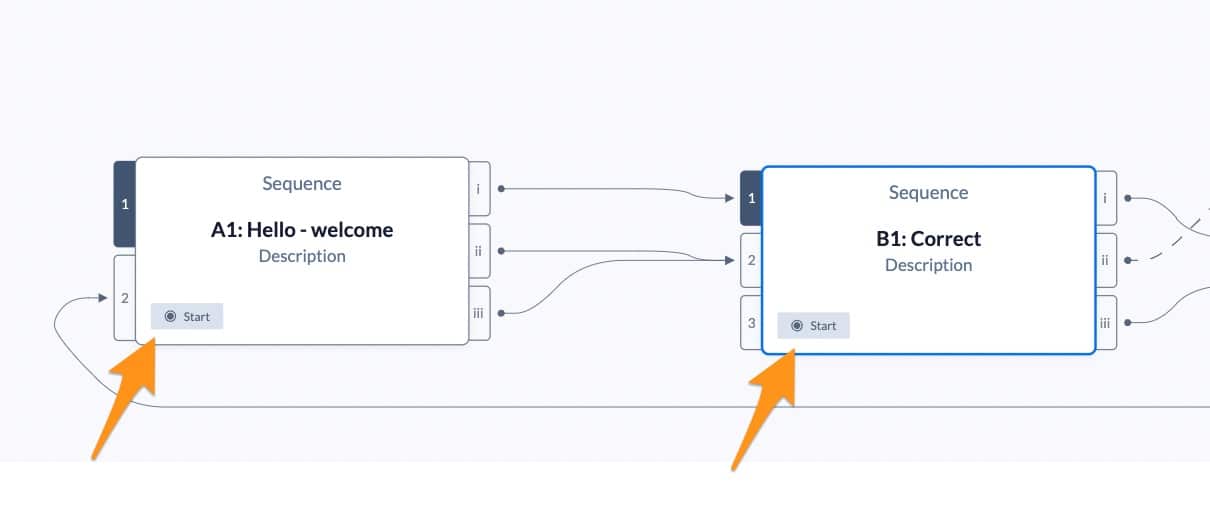
When you try to validate the project, you may get an error message that shows up in the top left-hand corner of the screen.
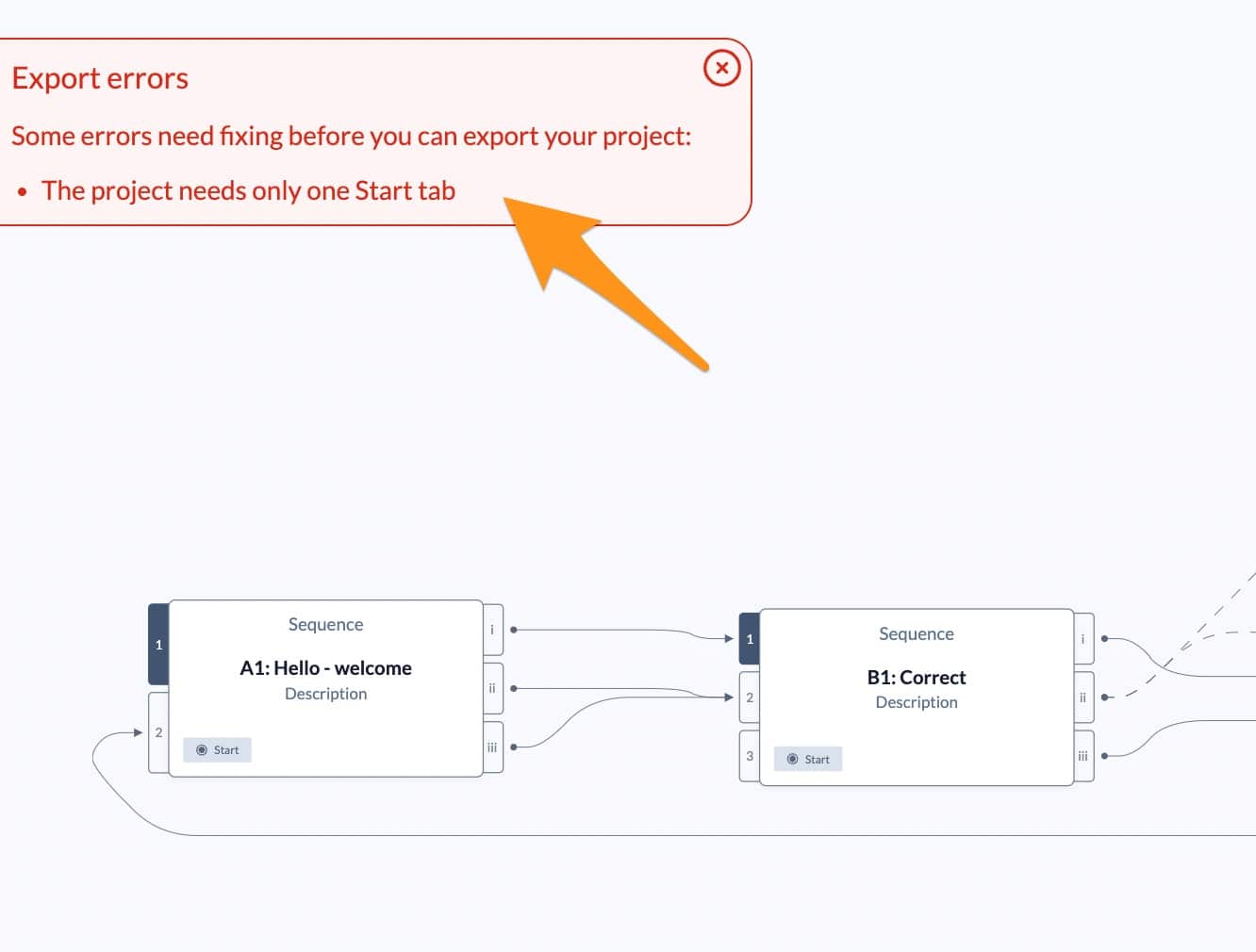
However, if that error message doesn’t come up, it is still worthwhile checking that you have only one island marked as “start”.
For other reasons why your project may be failing to validate, see the question below: What do validation errors mean and how can I fix them?
What do validation errors mean and how can I fix them?
When your project fails validation, it means there’s one of 3 settings missing that will stop the published project working properly, or a wrong type of image file.
- Either you don’t have one Start island set
- or one of your islands does not have a Default choice
- or one of your islands does not have a timing set for its choices.
- or you have uploaded a webp format image file – instead you must use jpg, png or gif
- or one of your videos hasn’t transcoded properly
To fix the first 3 of these, go to your Story Map to see where the errors are.
If you have no Start island set or more than one, it will show an error message at the top left of screen, like this.

You need to set only one island as your Start, so that the Stornaway.io player knows where to begin. It may be that you have deleted the original start island, or that you have set more than one island as your start – either way, you need to choose the one that you want. You can find the Start checkbox near the top of the sidebar, underneath Name and Description.
If that message isn’t shown, then the problem will be with one or more of your islands missing a Default choice or a Choice Timing.
Look to see which of your islands is highlighted in Red with an exclamation mark at the bottom right, like this:

Select that island and open the sidebar, to see where the error is showing.
It will tell you whether you need to add a default choice by saying “One of the choices must be set as default.” in red above the choices.
Or it will say “A time of display must be set” – telling you that you should put a number of seconds into the “Display X s from end” box.
As shown in these screenshots:


If one of your videos hasn’t transcoded properly, you’ll get the following error message shown in the screenshot below:

This usually happens because the project name and the filename are too long when combined.
To fix it:
- Go to Settings > Video Upload Queue
- Find the video that isn’t marked COMPLETE
- Remove that video from the island
- Upload a new version with a shorter filename
What if I can’t set a Default because my choice is an External URL?
One of the choices needs to be a default, but currently you are unable to edit the default box if the link is to an external URL. We’ll change this in future.
In the meantime, the way to make your project validate is to set another choice as a default.
So if you only have one choice/button on this island, then just create another choice, leave it unlinked, make it the default and hide it by ticking the Hide checkbox.
If you have any problems, let us know at support@stornaway.io
I am seeing a lag between video choices, what should I do?
Stornaway’s player is designed for seamless streaming like Netflix so you shouldn’t experience any lag between your videos.
If you are experiencing lagging issues with your project, here are some potential reasons:
- Playtesting versus publish versions: To begin with when you are clicking ‘Play’ at the top of the screen, there may be a slight delay when viewing your project. This will only be for you, or any other collaborators who have access to this preview. This ‘Play’ button compiles your entire project with all changes every time you click it. If you have a large number of islands and complex game logic, it might take a bit longer for you each time you click play as it compiles them all into a preview.When you publish the project, Stornaway saves the published version and makes your video available instantly to your users without the delay for compiling through the published link.
- Check your internet connection: The most likely cause of difficulties streaming is your own Internet connection speed. So first check your Internet connection using www.speedtest.net – most Internet connections should show a download speed of 50mbps (megabits per second) or more, and a ping (latency) of under 100ms.
Our HD Videos stream at a quality of 8 mbps so are easily able to stream on the vast majority of Internet and mobile connections. If your connection speed is very low, around 10mbps or under, your pipe is smaller than the video files coming down it. Check with your Internet provider that your connection should be this slow, turn your router off on on again or restart your computer/phone. If you are a long way away from your wireless router, move closer.
If you want to optimise for slower Internet connections, you can upload 1280 x 720 resolution videos which will be streamed at 4mbps. To do this, export MP4s at 1280 x 720 resolution from your video editing software or consult our upload page for instructions on how to convert video files.
- Size of video : If you upload full HD videos, we default to streaming at 1080 HD at about 8-10Mbps quality – which is reasonably high quality. There are lower resolution versions as well if the connection is slow, but it will try to serve it at the highest quality first.
- Length of video : 25% of the way through the video, we preload the first parts of all the next choices so that they can play quickly.When buttons are set to ‘cut on click’, the video tries to switch immediately – but with very short videos of less than 15 seconds with buttons set to ‘cut on click’, it might not have time to load the first parts of the next video *and* load the first parts of the next 2-4 videos when the buttons show up and get clicked immediately. That can be many MB to load within just a few seconds.If that’s the case with your video and you want to keep them short & snappy, there are a couple of things you can do :
- 1) untick ‘cut on click’ on your choices. This will play the video to the end before switching (showing the timer) – and this will give the next video a couple of seconds to load and will appear to load seamlessly.This is the way that things like Netflix do their interactivity – it used to be the default way Stornaway was set up, but we found that more people wanted ‘cut on click’ for their videos.
 
(You can also set it to ‘pause at end’ and wait for input – and set any of these as Defaults for the project and new islands in the Project Settings)
- 1) untick ‘cut on click’ on your choices. This will play the video to the end before switching (showing the timer) – and this will give the next video a couple of seconds to load and will appear to load seamlessly.This is the way that things like Netflix do their interactivity – it used to be the default way Stornaway was set up, but we found that more people wanted ‘cut on click’ for their videos.
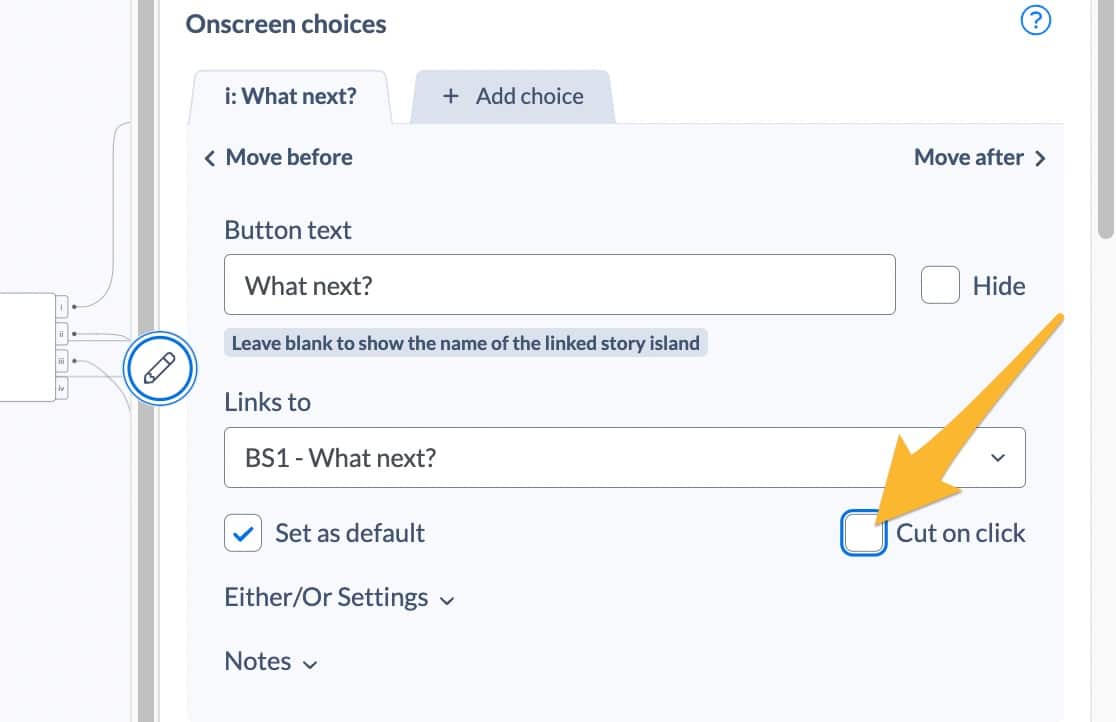
Cut on click – turn on/off in the island edit sidebar.
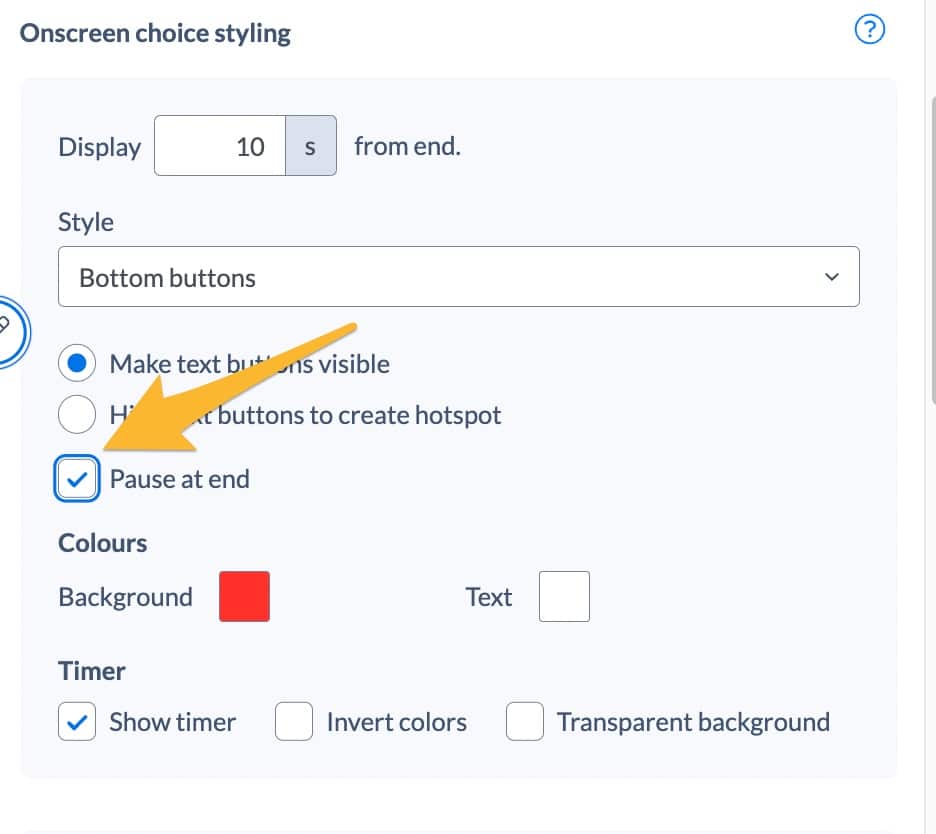
Pause at end – turn on/off in the island edit sidebar.
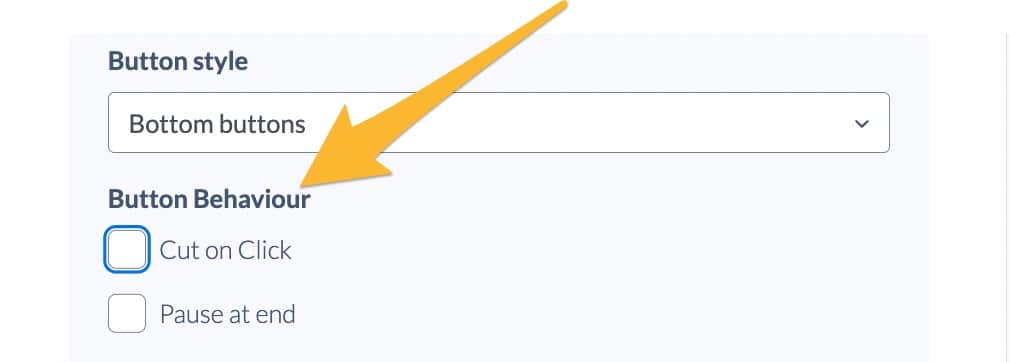
Cut on click + Pause at end – OR change project defaults in project settings.
- 2) After you’ve tried this and if it’s still at all laggy for you, it might be that your videos are still just too short to give time to preload the next choices (maybe 5 seconds?) – so if you want to keep them that length and use ‘cut-on-click’, it might be worth uploading them as 1280x720HD resolution instead of 1920×1080.Our 720 videos have half the data rate of our 1080 videos, which will mean they load and pre-load faster on slower internet connections with very short clips.
I'm experiencing problems with audio dropping or sounding distorted particularly when using the front facing camera on a phone and tracking fast movement
The most likely cause of this is your clip having a variable frame rate.
Some phones record video with variable frame rates, particularly when tracking fast movement. Mostly that’s fine, but sometimes the frame rate varies too much. And it also causes problems if you edit two clips like this together in a simple video player like Quicktime instead of in a video editing application. (Quicktime can play the audio from these merged clips in a way that other editors and video players cannot.)
If you experience audio problems on phone-shot clips that you’ve uploaded to Stornaway, you can counteract this by converting your clips to a fixed frame rate file before editing and uploading. This will fix the frame rate and thus make the audio ready to be cut together with other files.
For this, we recommend using any video editing application or Adobe Express, Veed.io etc
If this doesn’t help or you’re still experiencing issues with audio, get in touch – support@stornaway.io.
When I uploaded videos and create projects in Stornaway, do I still own the rights to my content?
As per point 4.2 in our Subscription terms, you retain the copyright to all of your projects and videos.
The Customer shall own all right, title and interest in and to all of the Customer Materials and shall have sole responsibility for the legality, reliability, integrity, accuracy and quality of the Customer Materials.
How do I set my project to autoplay?
Using our autoplay feature, you can make your project start without the viewer having to press the player button.
This is such a great tool to get people straight into the video.
Head into your project settings and tick the button to allow autoplay.
Key things to note: The first island must contain no sound (or the browser will automatically mute it). This is due to restrictions within the browsers. So be sure you’re happy with the first island playing mute.
Why am I seeing an error message when I try to edit a previously added island?

This error appears when the browser is loading the project at player.Stornaway.io not studio.stornaway.io.
Check that you’re using studio.stornaway.io./projects/
Why does my player skip back to the previous island?
This is probably because your don’t have a default choice set on this island.
Check the choice settings and make sure one of your choices has the default box ticked.
If you have external links, they default box is disabled, so you will need to set another choice as default (you can set it to ‘hide’ if you want. See Help question on this below).
Why does a video look more washed out than the original file?
Chances are that your file has a colour setting called “HDR” or “Hybrid Log Gamma” or “BT2020”. This will probably be a setting that you can change in your video app or editing software.
This is a setting that’s meant for High Dynamic Range (HDR) TVs. If it looks OK on your computer, tablet or phone, then that means your device can play it and make it look OK on its screen, but Stornaway needs to convert it to a regular web colour setting for everyone else, and that’s causing a shift to make it washed out.
The correct correct colour setting to use is Standard Dynamic Range (SDR) Rec709 or sRGB.
On a Mac, you can see what setting your file has by opening it in Quicktime and choosing “Window”>”Show Movie Inspector” (see screenshot below).
On Windows or Linux, you can use VLC to see the same information by clicking “Window”>”Media Information”
To fix it:
In the app or software you’re using to edit your files, see if you there’s an easy setting in your project or export that lets you change it from HDR or HLG or BT2020 to SDR or Rec-709 or sRGB. This should export files that Stornaway can read OK. If it’s an app with an HDR setting such as iMovie or 剪映, you will need to turn off the HDR setting.
If you’re having trouble doing this, let us know and tell us what software you’re using at support@stornaway.io

Why is my file not completing its upload/transcoding/converting process?
Videos should process quickly – they should take much less time to process than their playable duration.
Have you checked the Video Upload Queue in Settings for your project? All videos should have a Complete status soon after upload.
If they are stuck on Transcoding or Processing, the most likely cause of it not processing is that the file name is too long. There is a limit of 120 characters for the combined project name and file name in the URL of the streaming video file.
Try shortening the name of the file – let us know at support@stornaway.io if that doesn’t fix it, or if you’re having another problem.
My videos are very small, but won't finish converting after upload
Why are my buttons not appearing, or why is my video pausing before they show?
This usually happens when buttons on an island are set to appear at 0 seconds from the end. On mobile, this can prevent the menu from displaying correctly and may cause the island to pause before the buttons show. To fix it, update the button timing to at least 1 second from the end – we recommend always using 1 second or more to ensure consistent playback across devices. It’s also worth checking any other islands in your project to make sure none are set to 0 seconds.