

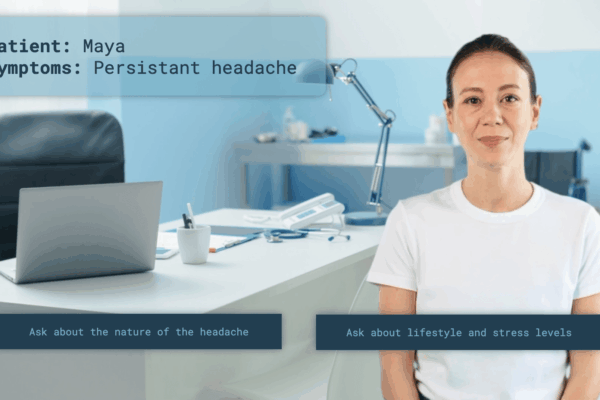
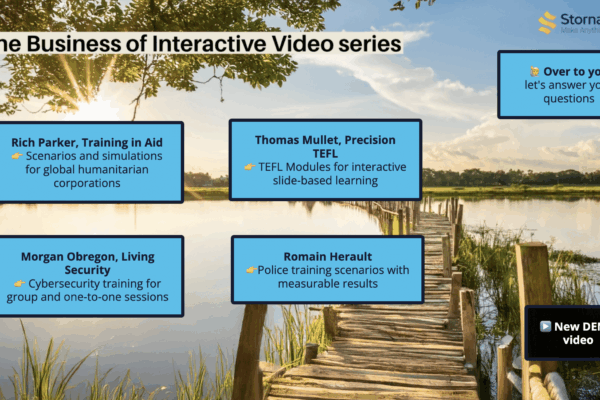
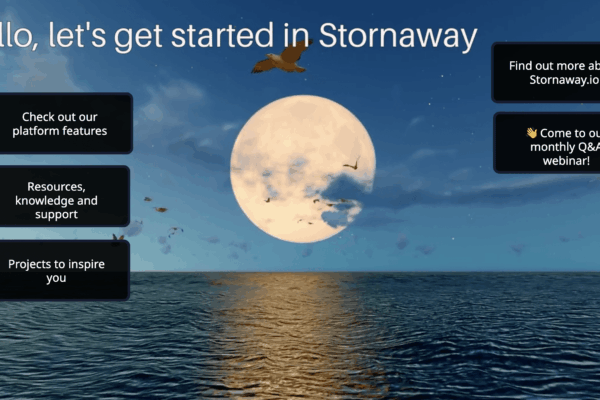
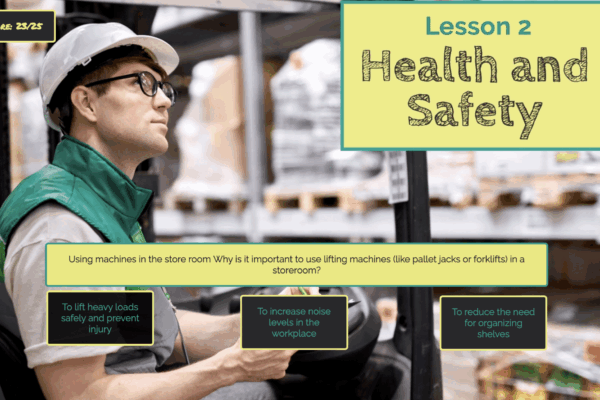
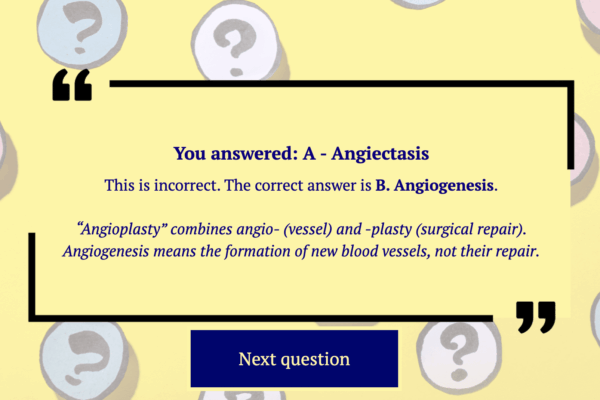
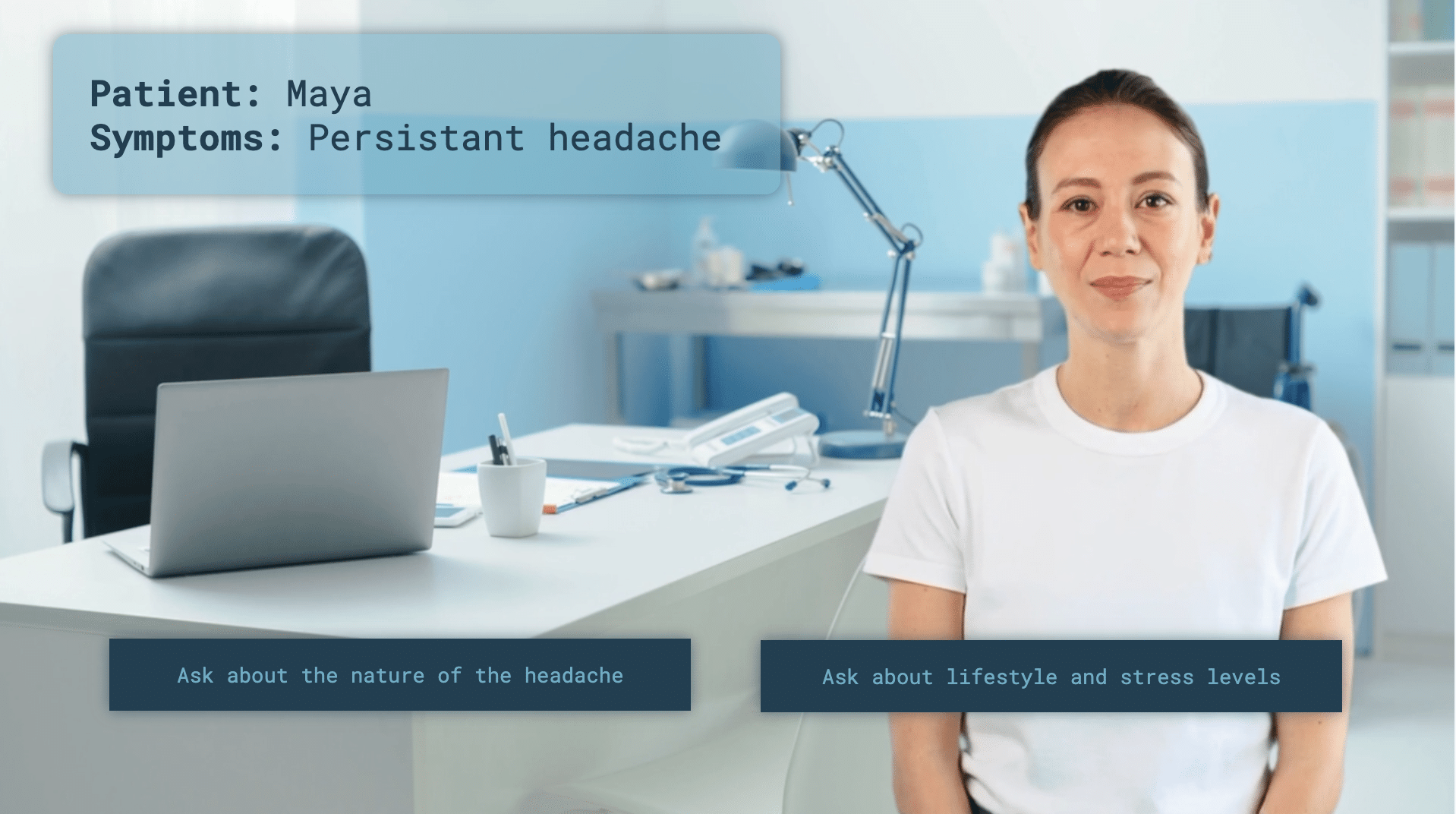
The Stornaway design editor for buttons and overlays lets you add your own branded questions, text boxes, CTAs, links to sales resources and more!
🎨 Use the design editor to customize colors, fonts and style settings - keeping your project on brand!
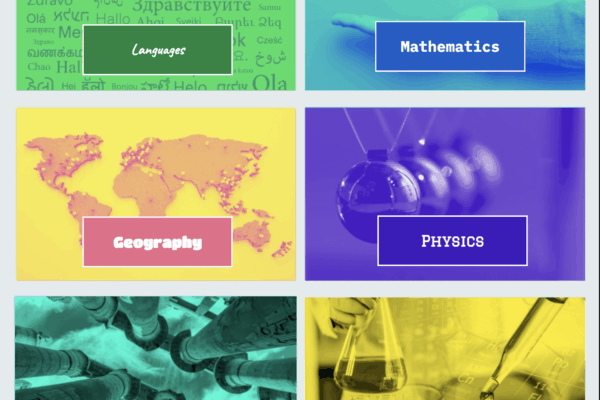
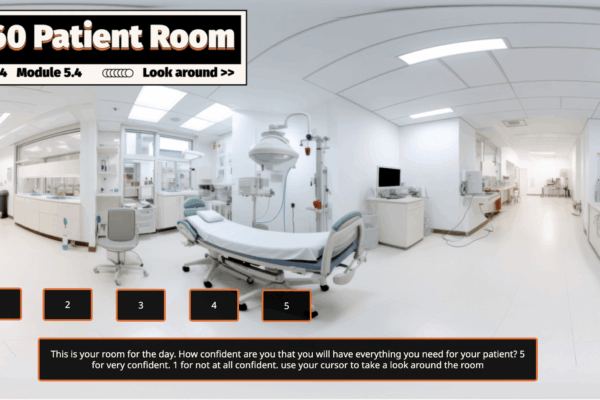
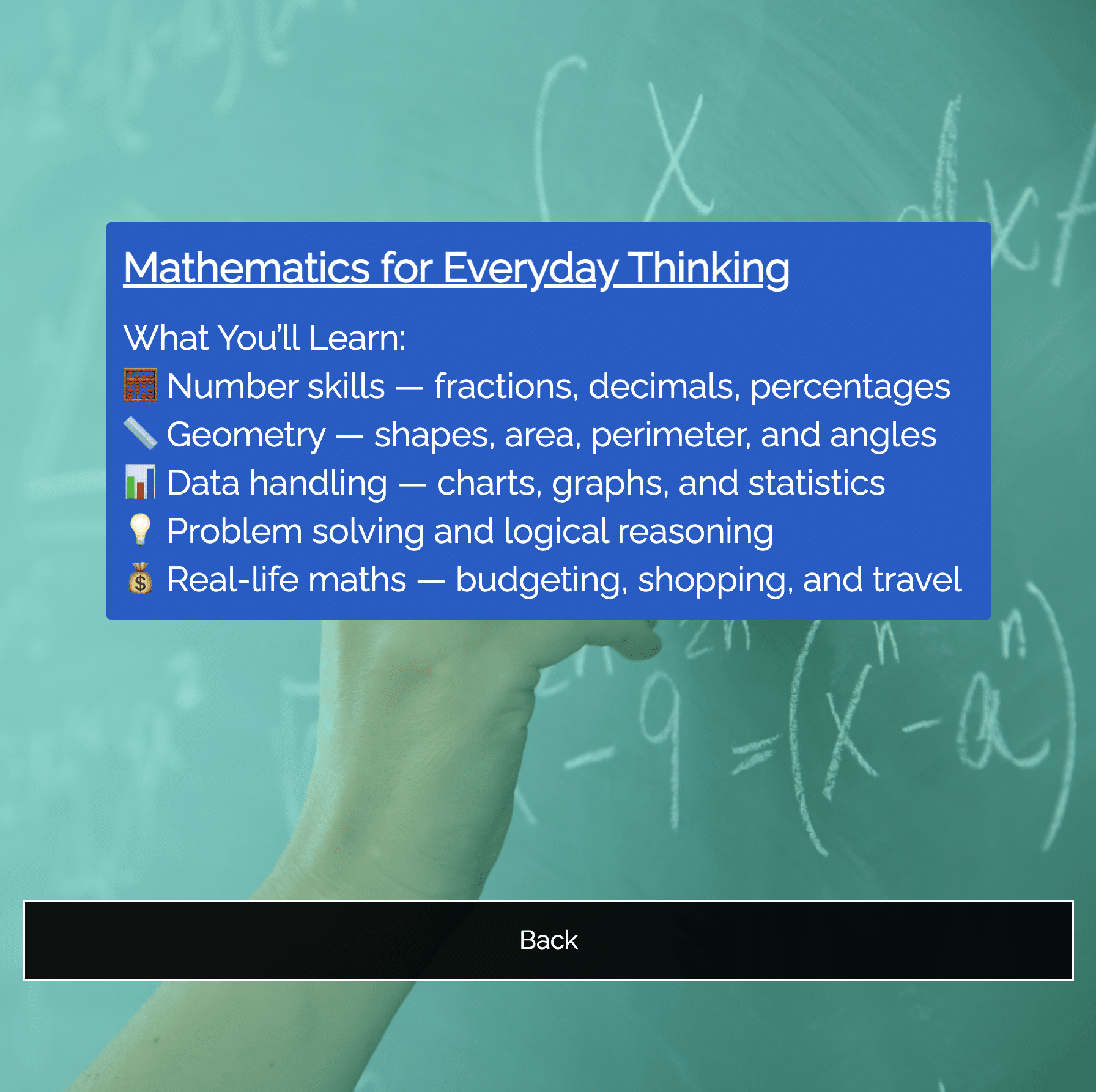
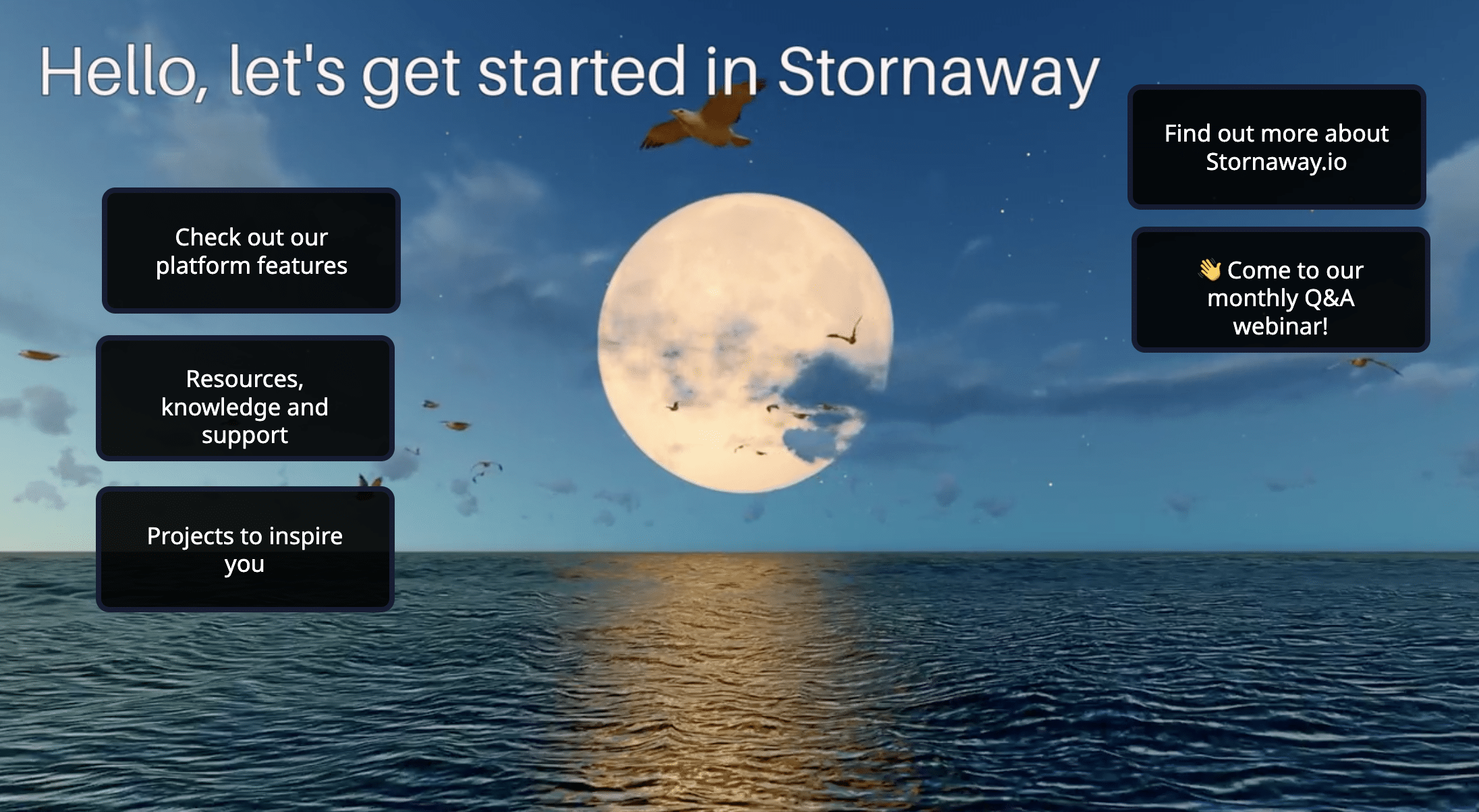
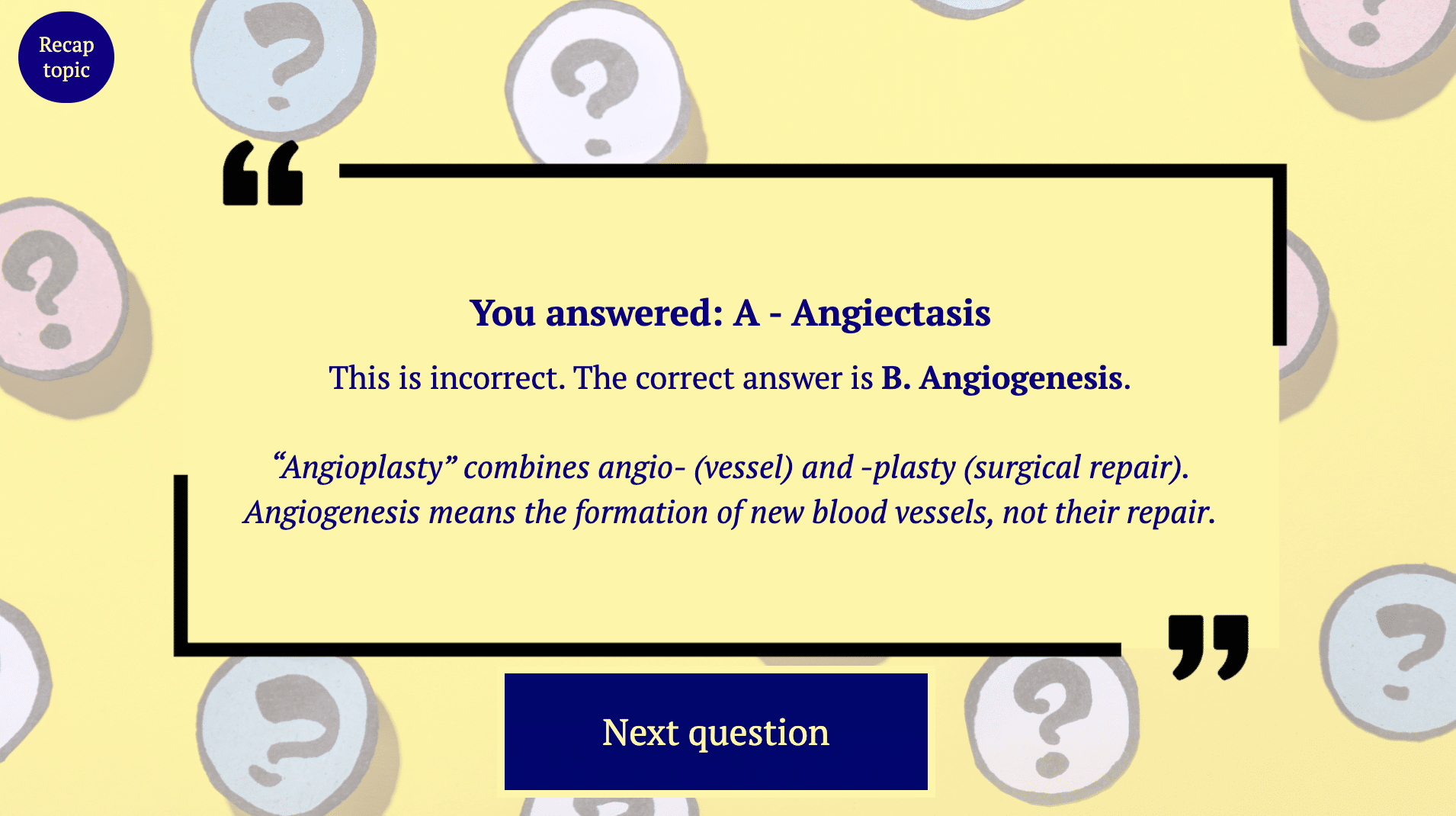
Edit the size, color, shape, and font of your buttons and other on-screen elements directly in your project, with our design editor.
Design these elements on a project, Island, variant and individual button levels.
Change the button appearance for standard buttons, hover states and after the button has been clicked.
Keep your interactive Stornaway on brand for your company, your audience and your story.


👉 How to use the design editor to customize your styles - for the whole project
To customize the buttons for the whole project:
Go into your project and on the top bar, click Settings > Project Design
Here, you can edit the font, buttons, questions and titles of your entire project.
The font tab refers to the font for your whole project – any questions or titles/descriptions on screen will use this font.
Use the Button Style tab to fully modify the look for your buttons
- There are options for font, size, color, border (thickness, color and visibility), the roundness of the button and options for bold, italic, strikethrough and underline.
- You can also apply settings for buttons that are hovered over and clicked on in this settings panel.
The questions tab lets you format the look of your onscreen questions.
- There are options for font, size, color, border (thickness, color and visibility), the roundness of the button and options for bold, italic, strikethrough and underline.
The title tab lets you create custom styles for your onscreen titles and descriptions.
🤩 Changes will apply instantly in the preview player – so you can test and tweak until it looks just right.

👉 Get more granular! Edit individual Islands, Variants and Choices!
You can get even more specific about what each Island, variant and button within your project looks like.
Open the Island settings panel and use the “Design X” options to open the design editor panel and customise the different on-screen elements of your project.
🔧 What You Can Customize
You can customize your Stornaway projects to match your brand and project.
The different elements are:
- Font
- Font size
- Text decorations – bold, italic, underline,
strikethrough - Text color
- Text alignment
- Text wrapping
- Padding
- Background color
- Border width
- Border radius
- Border color


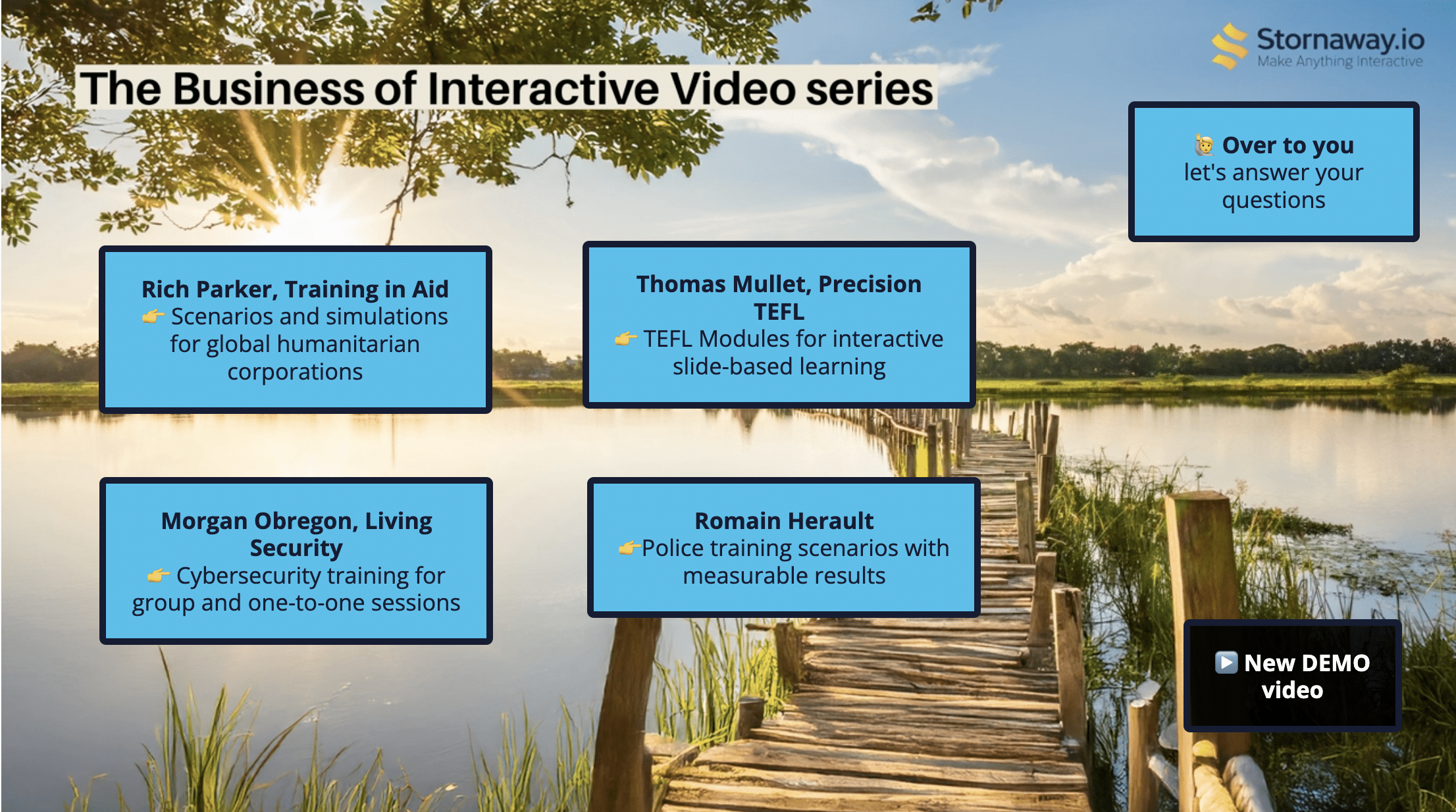
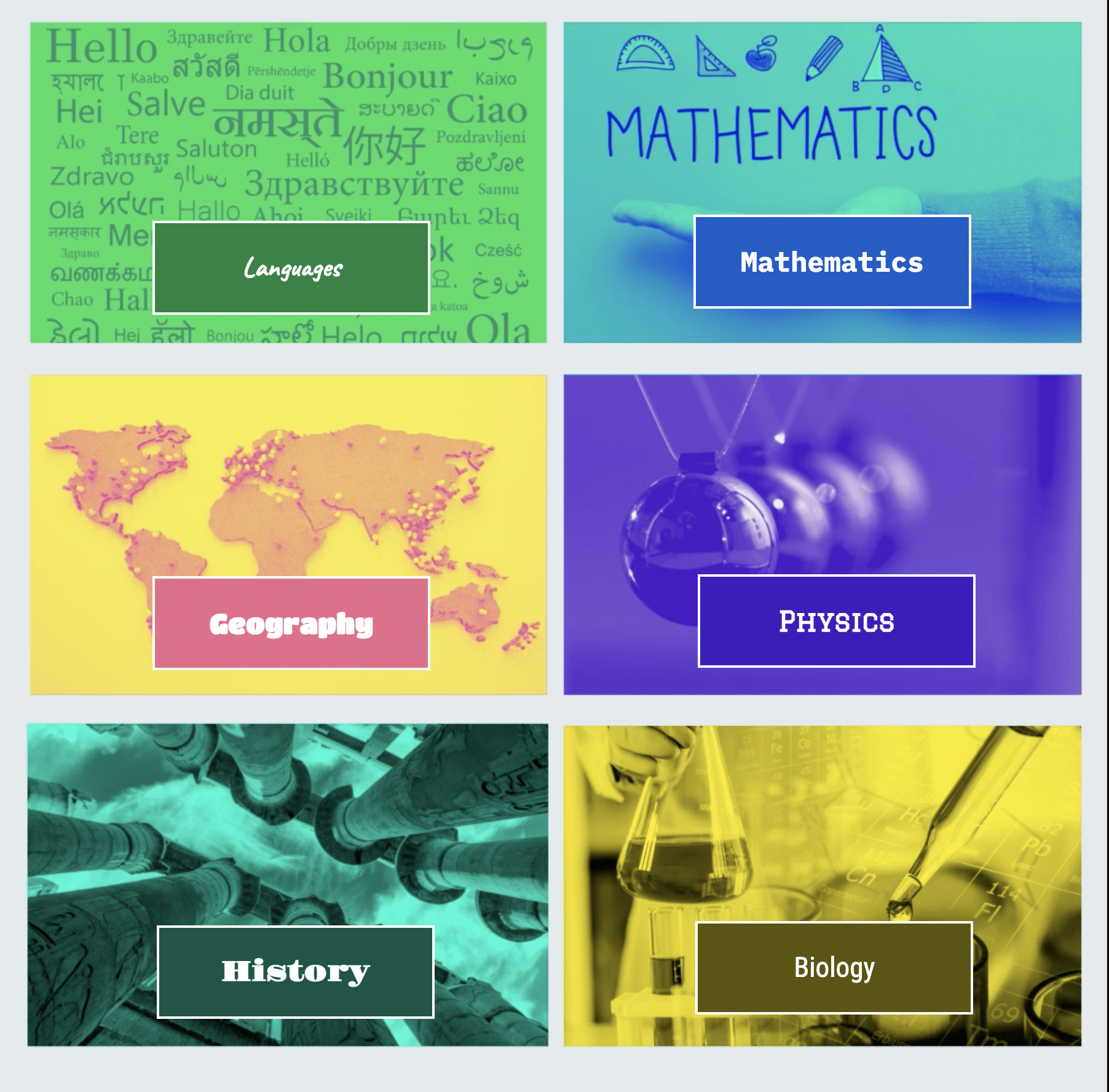
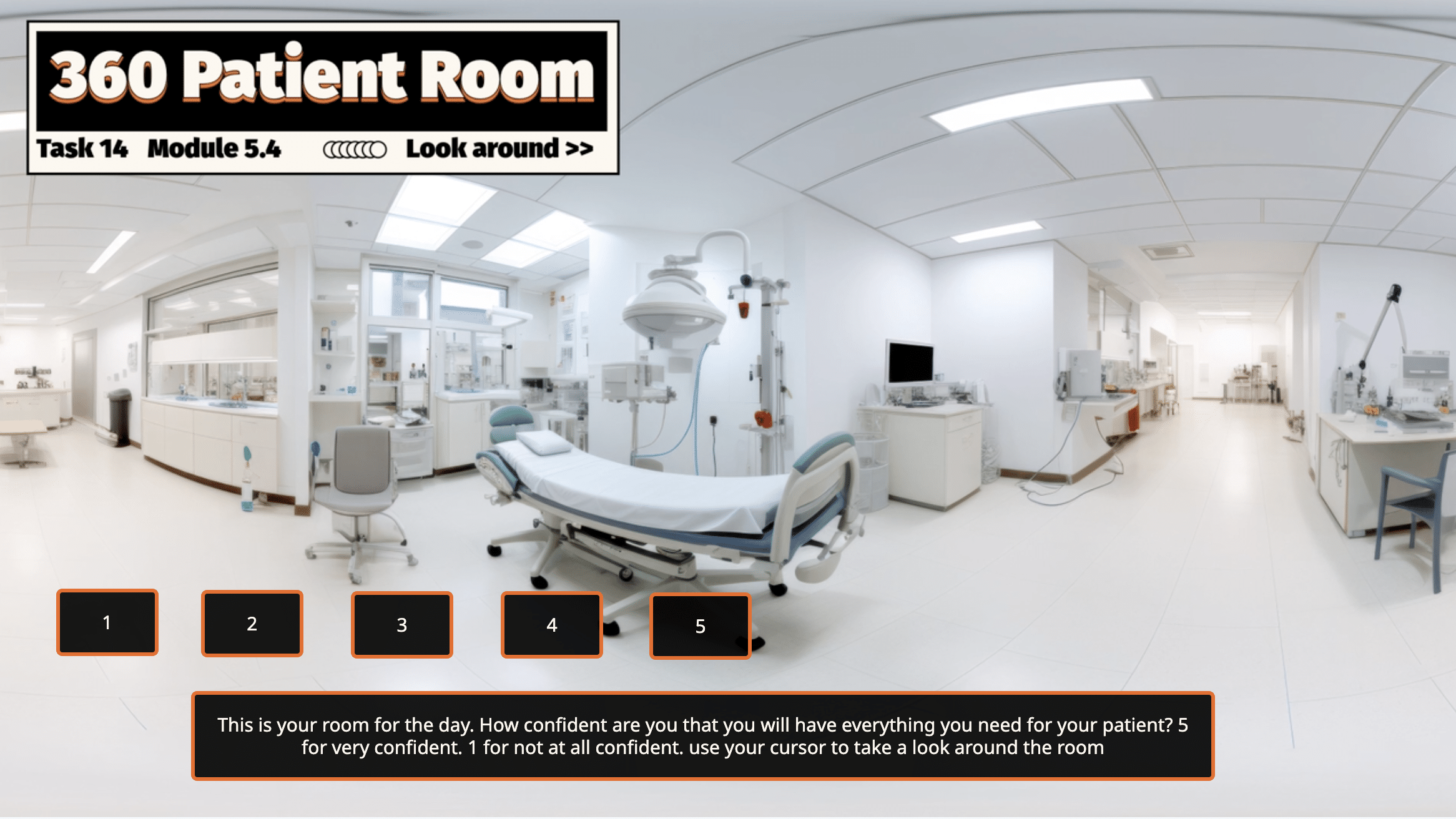
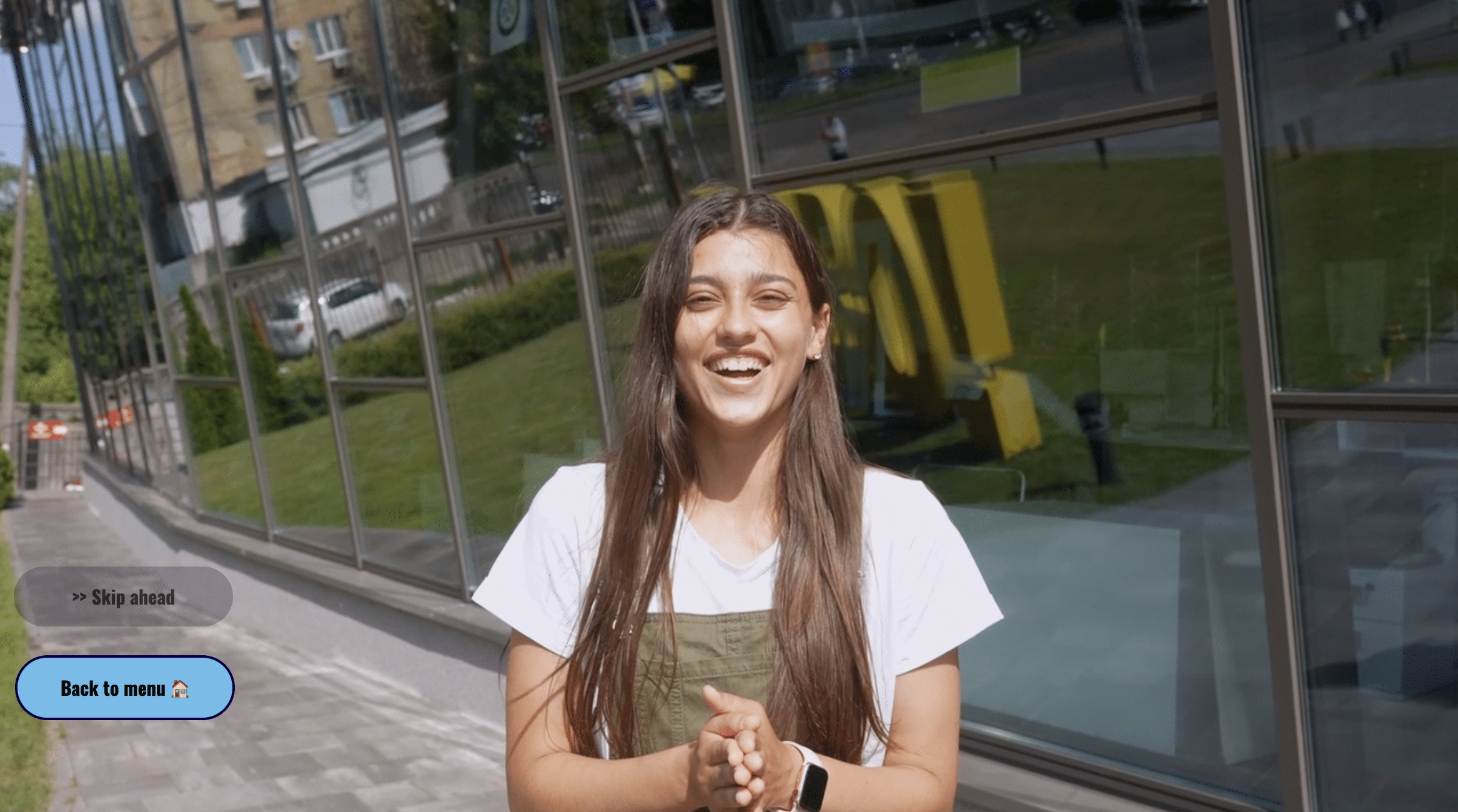

🧩 Want to Use a Custom Font?
Support for uploading custom fonts is coming soon – available for Enterprise and Custom plans.
This will allow you to:
Match your brand exactly
Use licensed or proprietary fonts
Create a fully bespoke look and feel for your project
📬 Interested? Get in touch with us to find out more or to request early access.
⬆️ Upload your own buttons
Want total control over the look of your buttons? You can upload custom button images to fully match your project’s style, branding, or creative concept.