

Make interactive experiences with 360° video 🌎
Stornaway allows you to create interactive journeys and experiences from 360 degree video footage to truly immerse audiences for virtual tours, real-life training scenarios and immersive events.
Now you can place your buttons anywhere in your 360 video. Learn how to use 360 Button Positions.
Creating 360 experiences ✏️

To enable 360 on your project is easy!
Simply head over to the media section in your island settings panel where you’ll see a “360 Video projection” option.
Here you can select the audio type for your video (see more below).
Once you’ve selected an option and saved your island, the 360 video projection will be enabled on that island.
360 Button Positions
Place your interactive buttons and elements anywhere within your 360° video.
Draw attention to specific parts of a scene, reward viewers who explore, and create branching narratives where the space itself is part of the experience.
Welcome to a whole new dimension to immersive video.
How to place you 360 buttons
Watch the video tutorial:
Placing your buttons around the sphere is as simple as placing your buttons in your regular videos. Follow these steps and you’ll be set to go:
- Upload your 360 video
In the Island Settings Panel, head to Upload Media
Upload your 360 video
Set 360 Video Projection based on the sound settings in your 360 video.
*if your 360 is an image, you need to turn it into a video first
See more about this in our FAQs below. - Select the button style
In Settings and styles for all buttons, set “style” to 360 button positions
Click Update Island. - Place your buttons in the 360 flat image
Once the video has transcoded, you’ll be able to place your buttons.
In Settings and styles for all buttons, you can open the “Edit Button Positions” and place your buttons anywhere within the 360 flattened frame.
You may need to use the button width/height settings in the Buttons, links and text boxes area.
These are set as a percentage of player frame size. - Preview your buttons in 360
Close button editor and play from here to preview in 360.
Head back into the settings to adjust as needed. - Add your button design
Once you’re happy with the locations, you can begin to add design elements using the design editor for fonts, buttons shapes, colours and more.
If you’re placing an invisible button, make it visible whilst you position and design
Tips and Recommendations for your 360 buttons
- Set all buttons at 4% x 4% to get started with
- Set padding to 0em in Project Design
- Use the bottom slider in the color picker to set transparency
- Set text to a single space if you want to hide button text
- Give buttons a border
- Give buttons a hover state that inverts the background, text and border
- Give buttons a click state that changes the border colour
- As with regular Stornaway: Use Button design panel to design individual buttons
- As with regular Stornaway: You can show and hide individual buttons at specific times
- Use “play from here” to test your Islands and make sure you’re completely happy with your button placement without having to play the entire project.
- Place invisible buttons before you make them transparent. Get the location, size and shape right and then turn the opacity down in the settings for your pre-clicked button state.
See some examples of buttons placed across 360 projects
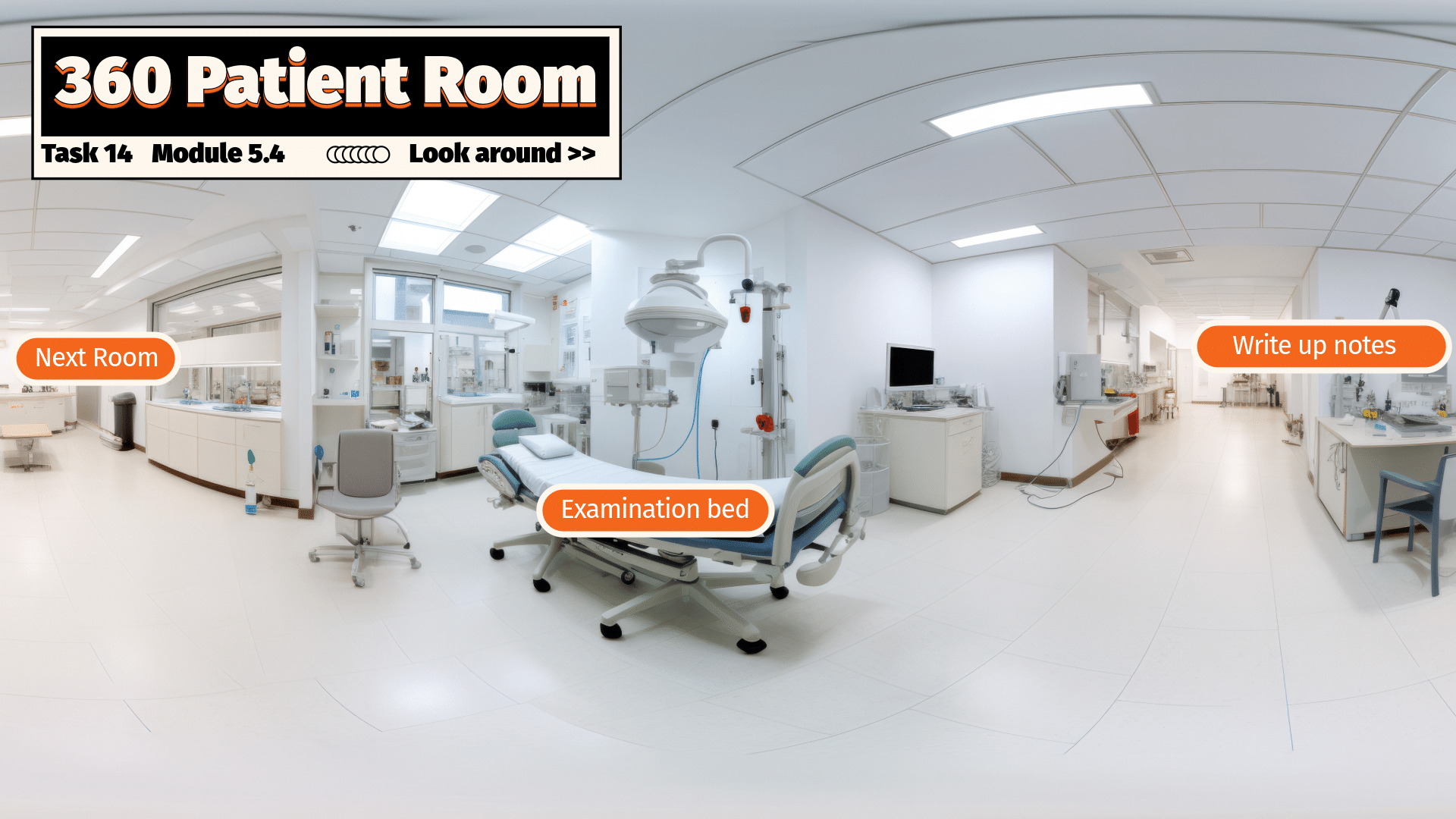
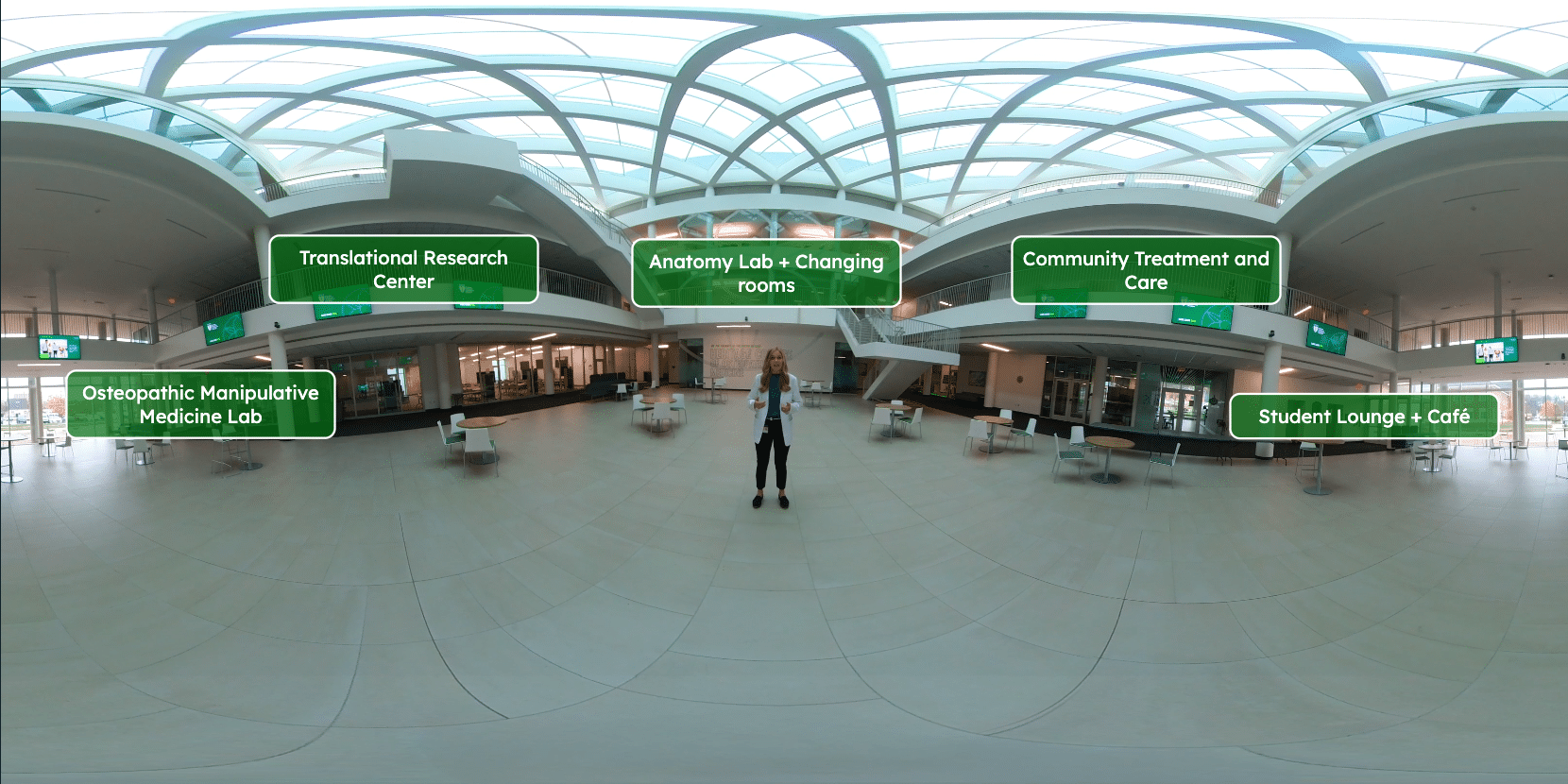
Play Example: Explore Ring of Brodgar with Ru Howe in 360
Click and drag to look around (Full project in construction)
Play Example: Explore your holiday home in 360 before you arrive
Click and drag to look around
Using binaural sound 🎧
With our binaural sound feature, you can immerse your viewers like never before. With more people than ever using headphones to listen to videos, you can make use of this feature to create a richer sense of space – using the full 360 degrees to spatial locate specific sounds.
This is huge for creating a fully immersive experience – and essential for any virtual and augmented reality projects.
Simply select “360 with surround audio” on the 360 Video projects dropdown!
Benefits & use cases of 360 video 💪🏽
Using 360° media within your interactive projects provides an impactful and effective way to teach viewers about handling real-life scenarios.
Using interactions to show consequences based on the actions they’ve chosen, combined with deep immersion of 360 makes experiences feel engaging and real, resulting in viewing more likely to remember what has been learnt.
Scenario training can really benefit from 360° interactive experiences by removing all risk and trauma from situations like learning CPR or training for dangerous jobs, while keeping the situation as realistic as possible.
Other valuable uses include putting viewers in virtual places, like museum tours, event venues and exciting locations. People can experience these places without actually being there.
Our top picks! 🏅
Tiree – explore the beautiful Hebridean island in 360VR with a mix of 360 videos and still images.
Explore the sights of Copenhagen in this 360 tour, with a mix of video and photos.
Bring in the festive spirit with a choose your own interactive 360 Christmas card.
360 Adventure – Make the decisions and explore in the 360 student project.
FAQs on 360 video
Camera recommendations
We typically recommend Insta 360 cameras. They currently have a new one out ( The ‘X4’ that shoots in 8k), but this is likely more than what most people need – the X2 or X3 should be fine for most use cases. You can use the in camera settings and we are happy provide instructions on preparing footage when you’re ready.
File sizes and resolution
The files that come out of a 360 camera like an Insta 360 are huge – both in their height & width resolution and in the amount of data they use.
For Stornaway, we need to stream these files to people all over the world with different internet connection speeds and data costs, so we need to be very efficient about the balance of quality and file size so that the files will stream and it won’t cost too much.
So we compared notes with other streamers and chose a balanced resolution and file size of 3840×1920 and a data rate quality of 14 megabits per second.
Stornaway currently has an upload limit of 4GB per clip (for all sorts of good reasons) which is about 5 minutes at this data rate of 14 megabits per second. 5 minutes is usually more than enough for an interactive clip – but if you want longer, there’s a way to join up longer clips described in the Video Uploads Help section.
The next question is, do you want to take clips direct from your camera app into Stornaway, or do you want to put them into a video editing app like Premiere or Final Cut first?
If you’re taking it out of the camera app into Stornaway, you should export it at the above settings of 3840×1920, and 14 megabits per second. If you want to take it into an editing app first, then you should export it from your camera app at the original resolution to keep the quality highest in your editing app and improve flexibility for later – and then when your edit is done, you should export from your editing app using the Stornaway settings of 3840×1920, 14 megabits per second.
Using 4k footage
4K video can really tax people’s internet connections and even break some people’s browsers when wrapped around a 360 sphere, so we’ve worked to optimise the video for streaming and performance in the web browser.
This means we slightly reduce the resolution of the video to 3K which most people’s web browsers can cope with, and use a bitrate/quality of 14Mb/s which is just below a good 4G connection. In most cases this looks fine, but with some sharper environments with lots of detail, you will see some loss of quality by necessity – that’ll be what you’re seeing here in the web player.
However, when you export to Unity, we use the higher quality MP4 4K files at 20 Mb/s – so when in Unity and Quest, it will be higher quality and sharper
Button placements & hotspots
Check out our new 360 button positions – now in beta!
Get in touch if you want to try: support@stornaway.io