

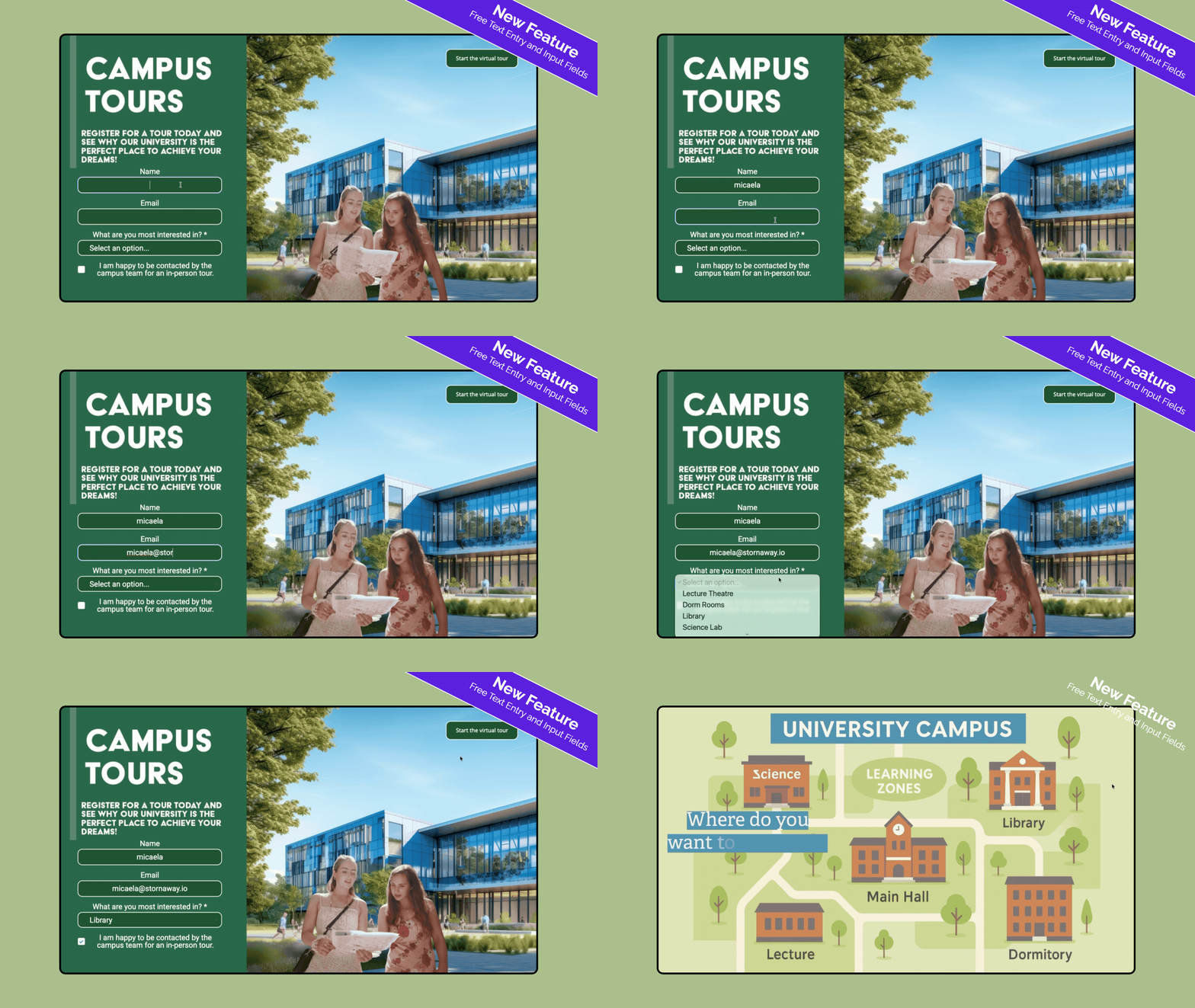
Free text entry inside your video player
Ask your viewers to input information into your learning or marketing videos
Set up forms for responses inside your video and capture:
– Names
– Emails
– Free text answers
– Use dropdown fields for preset answers like Country or Industry
– Use checkboxes to confirm agreement and opt-ins
And then Personalise your Video Experience with Onscreen Text and Gamified Pathways
– Display their name and answers on screen as overlays
– Personalise their pathway through your video depending on what they have entered
– Collect their answers in our Advanced Analytics
– Send the data to your own platforms via integrations
Learn how to do this below
🪄 Input fields in action
👉 How to use the input fields feature
Step 1
- Go into your project and select the Island that you are adding the input fields to > open the settings panel.
Step 2
- In Button Type, select Input fields.
Step 3
- If needed, change your button type to “custom button positions” > update Island.
Step 4
- In the “Custom Button Text” box, you can add your menu title. This won’t appear on the screen, but may be useful to keep track of your choices.
- Now you can get to the fun part – adding design and questions to your input fields.
- The “form layout and submit button options” allow you to set up how your form will look, how many columns you want and the spacing between the rows and columns.
- As you build out your questions, remember you can keep testing and playing until you have the setup that looks perfect for your project.
Step 5
- Then, add your input fields. Use the “input label” to let your viewer know what you need from them. The placeholder text can add clarity to the type of answer you’re expecting.
- The input type allows you to get specific – is it text you need, an email address, a number, a checkbox or a list?
- Assigning a variable to each variable option gives you the power to display this information back to the viewer later in the project.
- Learn more about variables here.
Step 6
- Add as many input fields as you need.
Step 7
- Head to the “custom button positions” editor to place this exactly where you want it on the player.
- And then play and test. And play again!

✨ Tips and Tricks
*If you’re looking to gather the data that people share, you can do this on one of our Enterprise plans. Let’s talk about what you’re looking to gather and scope how we make this essential data collection tool set up for your team!
- When combined with variables, the input fields allow you to show your viewers what they’ve previously told you. Perhaps their name, an answer earlier in the project that you want them to reflect on.
Learn how you can use Variables.
👀 Get inspired! Check out some ways that you could use free-text input fields in your project
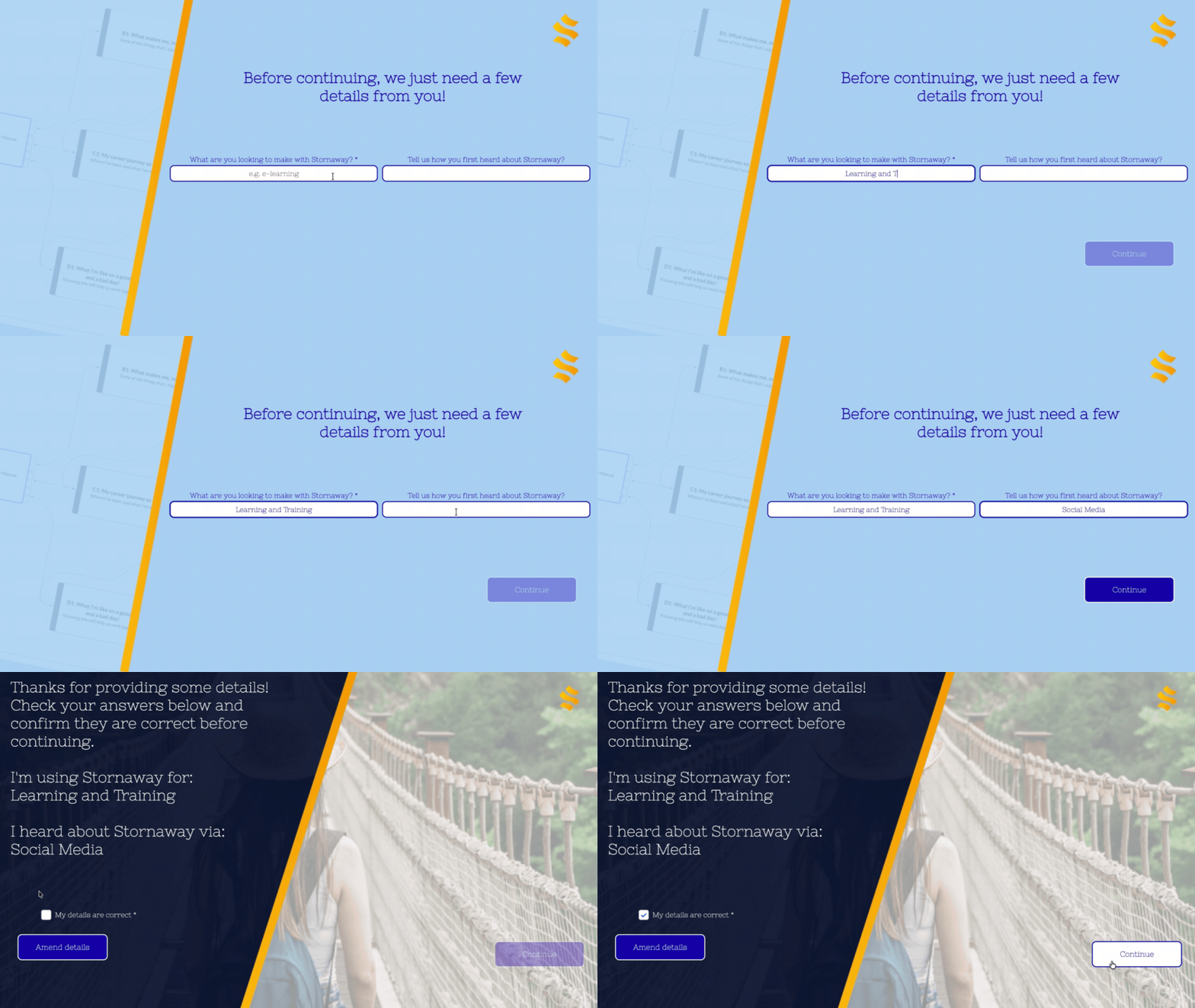


✨ Tip: Consider contrast and readability (especially for mobile users).