

Add named, time chapters to your videos – then link straight to them, import them from Premiere, and show them on the player
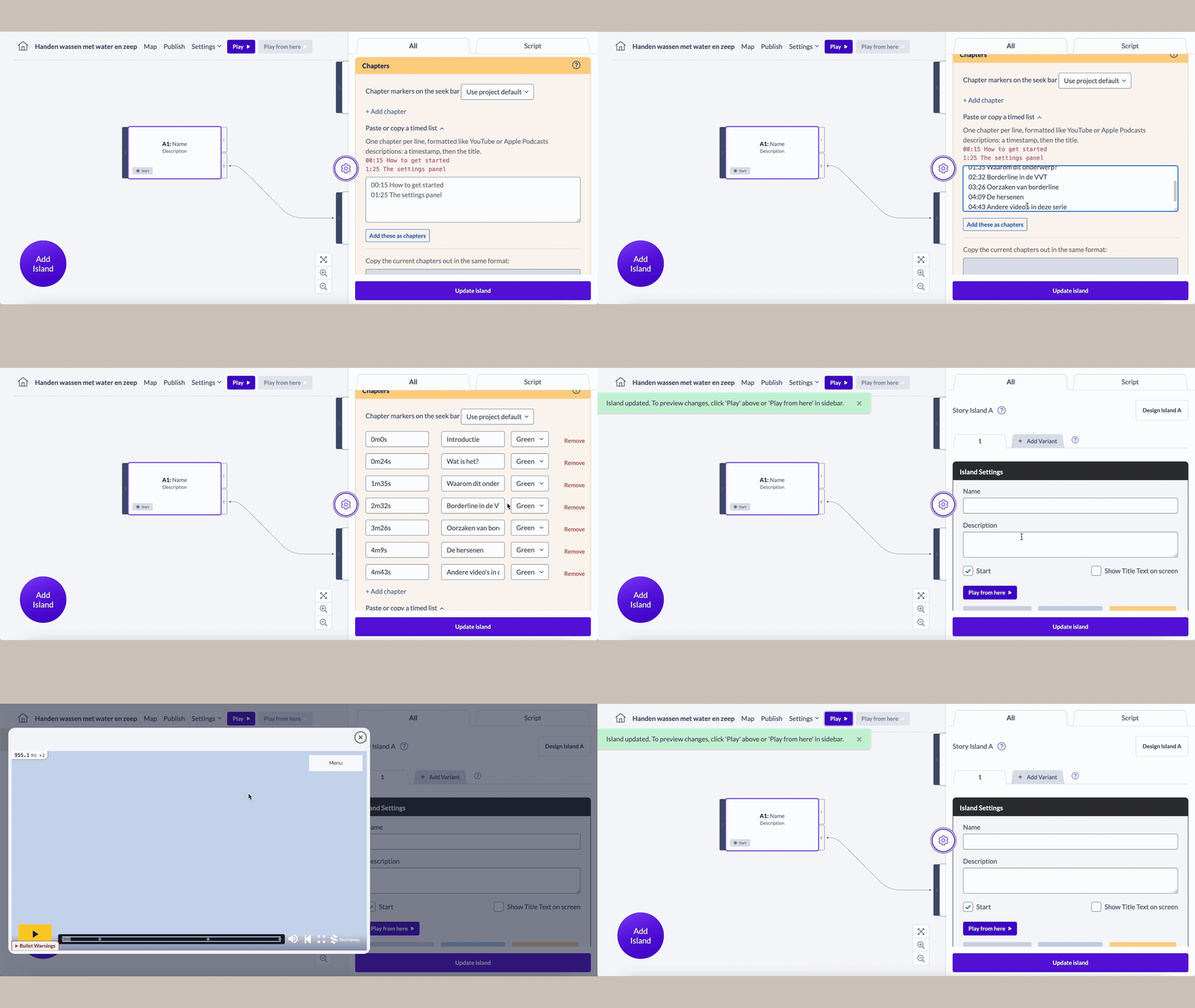
What are Chapters?
Chapters are named time bookmarks you add to an island’s video. Each chapter has a name, a timestamp in the video, and a colour (for example “Introduction” at 0m0s, “Product demo” at 1m35s, or “Q&A” at 4m10s.)
Once you’ve defined chapters on an island, you can point any link at a chapter instead of typing in a timecode by hand. You can also show them to viewers as coloured markers on the player’s seek bar.
👉 Creating Chapters
You add and manage chapters in the island settings panel – you’ll find it between “Settings and styles for all buttons” and “Upload Media”.

- Open the sidebar for the island you want to add chapters to and scroll to the Chapters section.
- Click to add a chapter row. Add as many as you need.
- For each chapter, give it a name, set its time in the video, and choose a colour to appear on the player’s seek bar.
- Add more rows for each chapter, and remove any you don’t need. Save the island when you’re done.
✨ Tips and Tricks
- Tip: Give chapters clear, viewer-friendly names. If you switch on the player markers later, these are the labels your audience can navigate by.
🔗 Linking to a chapter
You can use chapters on choices, dropdown menus, multiple choices menus and game logic sections, allowing you to send your audience to a precise moment in that Island. The settings for this are included in the “link to time” options.

- Find the “link to time” field on the link you’re setting up.
- Instead of typing a time, open the chapter dropdown beside it and pick the chapter you want to jump to.
- That’s it! The link now targets your chosen chapter.
✨ Tips and Tricks
- Tip: If a chapter’s time changes, every link pointing at that chapter follows it. You don’t have to locate and re-edit each link.
🖥️ Showing chapters on the player
You can turn your chapters into coloured markers on the player’s seek bar. Each marker uses the colour you chose for that chapter, giving viewers a visual guide to the sections of your video.

Turning markers on or off
A show/hide chapter markers toggle lets you switch them on or off. Turning the markers off only hides them on the player – your chapters, and any links pointing at them, are left completely untouched. Switch the toggle back on at any time to show them again.
✨ Tips and Tricks
- Good to know: Hiding the markers is purely a display choice. Your chapters keep working as link targets whether or not viewers can see them.
⬆️ Importing chapters from Premiere
If you’ve already marked up your sequence in Adobe Premiere Pro, you don’t have to retype your chapters – Stornaway can import them from a file you export from Premiere. You’ll find the import option in the Chapters section, and again next to the video field in Upload Media.

Stornaway recognises the file automatically from its type. There are three supported formats:
XMP: the recommended option
- An XMP sidecar file exported from Premiere alongside your media.
- This is the most reliable choice where it’s available: the file describes its own timing, so your chapters land at exactly the right moment with nothing extra for you to enter.
- Only markers labelled as chapters are imported.
CSV: Premiere’s marker list
- Premiere’s marker-list export.
- Only markers of type “Chapter” are imported.
- Because a CSV doesn’t record the video’s frame rate, you’ll be asked to provide it so times convert correctly. Enter the frame rate of the sequence you exported from.
OTIO: a raw Premiere timeline export
- A raw OpenTimelineIO (.otio) export from Premiere.
- Premiere’s OTIO export doesn’t record a marker type, so every marker in the file is imported as a chapter. Use this format when your markers are all meant to be chapters.
However you import, chapters are written straight into your island’s Chapters list, ready to name links against.