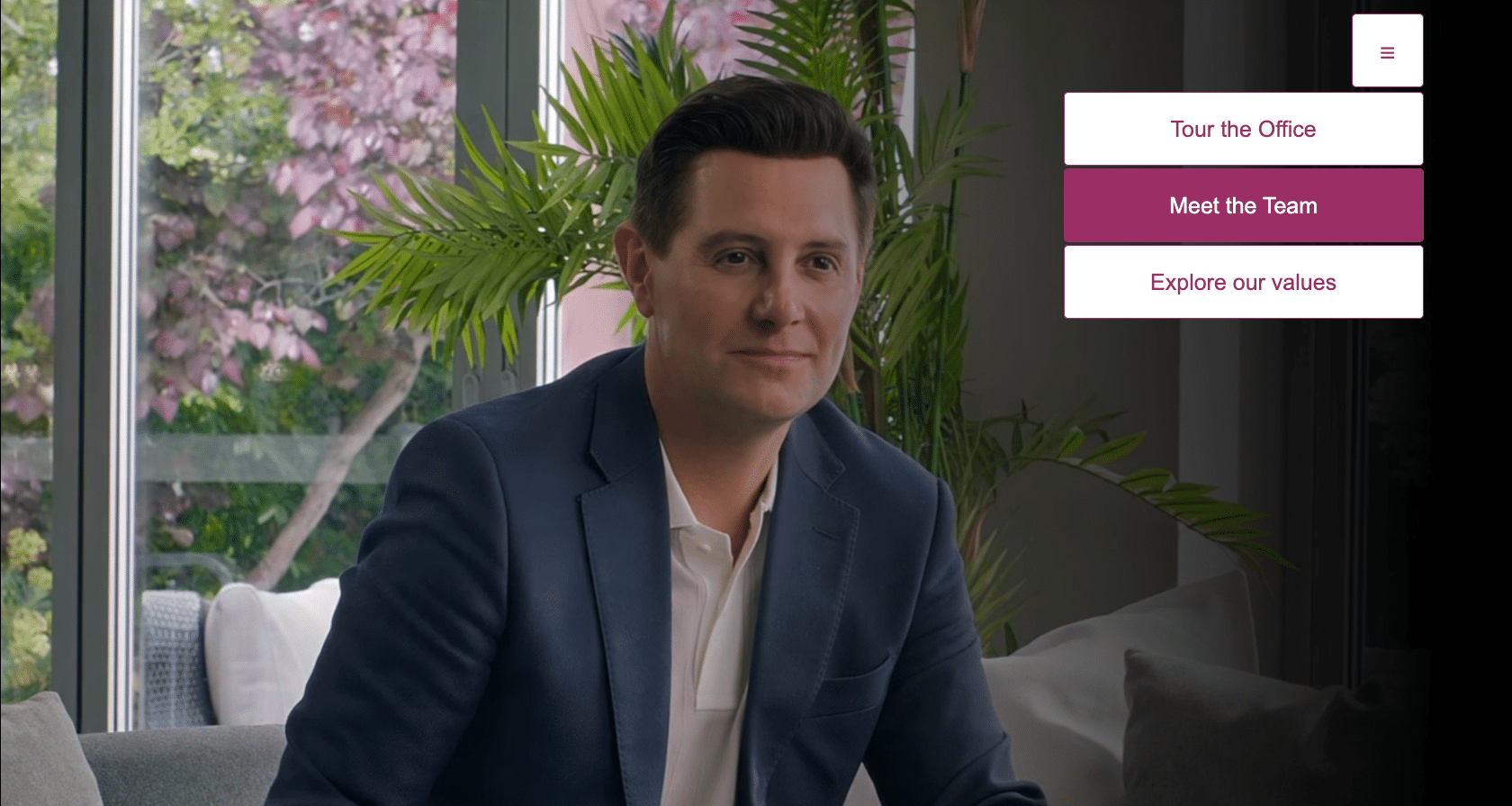
Let your views make choices about where they go next whenever they want, with menus in Stornaway
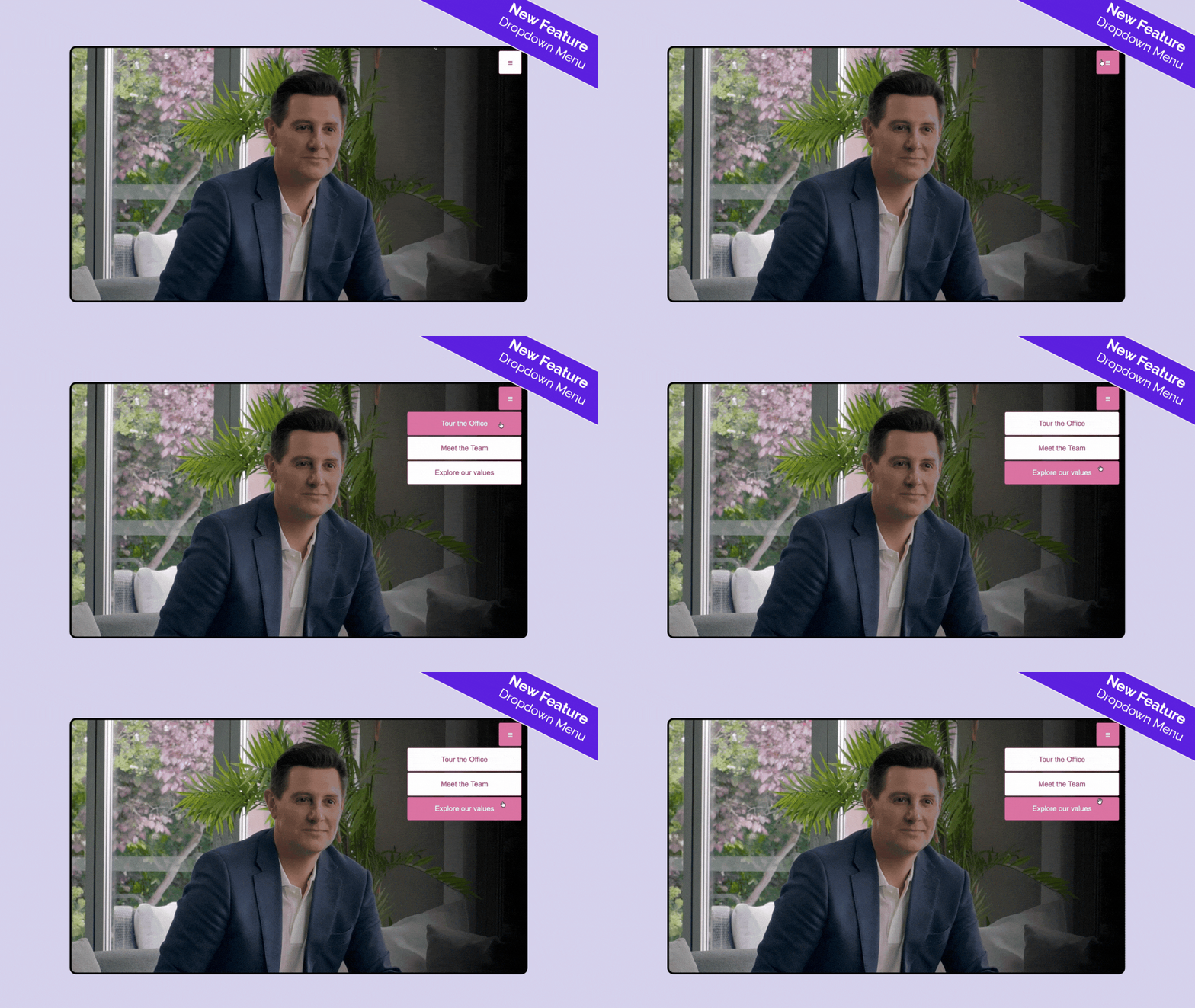
Menus you can show and hide at a click, anywhere in your frame.
Dropdown navigation menus enable your viewers to access the key information they need at the right time.
With consistent buttons that are snapped together and tidied away. The menu can open up or down, left or right.
🪄 Dropdown navigation menus in action

👉 How to create a dropdown menu
Step 1
Go into your project and select the Island that you are adding the menu to > open the settings panel
Step 2
In Button Type, select Drop Down Menu
If needed, change your button type to “custom button positions” > update Island.
Step 3
In the “Custom Button Text” box, you can add your menu title. This is what will appear when the menu is in its closed status.
🍔 Want to create a “hamburger” menu?
Copy and paste this symbol into “Custom Button Text” for your menu header
☰
Step 4
Add your other menu items as buttons.
Each button can have its own text, it can link to a new Island, an External link, or jump to a time in the current Island (or a specific time in a different Island).
Step 5
In the Menu Layout Options, set your spacing, direction and alignment options. Play and test these until you have the look that feels right.
Step 6
Use the “custom button positions” editor to place this exactly where you want it on the player.

🔧 Tips and Tricks
- Use this feature with Jump to time to send your viewers to specific times in this video – or a video on another Island. Perfect for creating chapters.
- If you’re creating a menu that will feature on every Island, start by creating the menu on one Island. Duplicate this Island for all of your other Islands so that your menu is already created and ready to use for all of your Islands.
- Want to create a “hamburger” menu? Copy and paste this symbol for your menu header
☰